A personal-details change is saved as soon as it is confirmed. An exam change creates a
new linked booking and is not complete until checkout has been completed. If checkout
is not completed, the personal-details change will remain, but the exam change will not
take effect.
Steps
- Select the booking number for the paid booking you want to update.
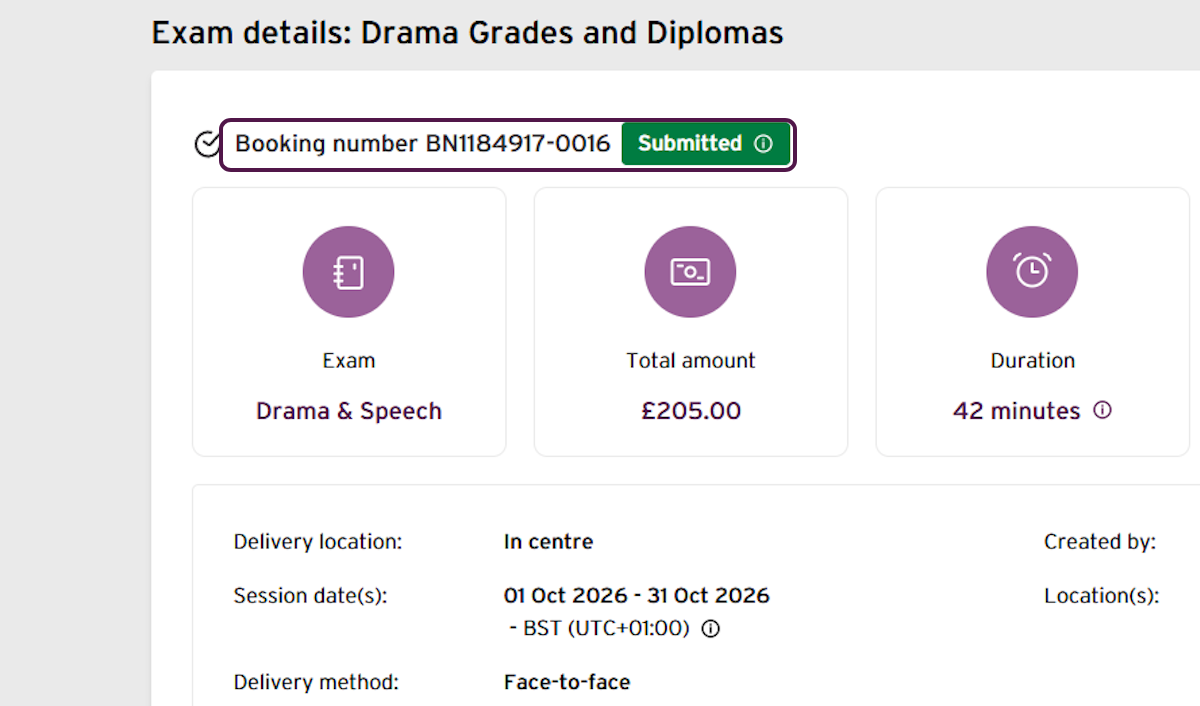
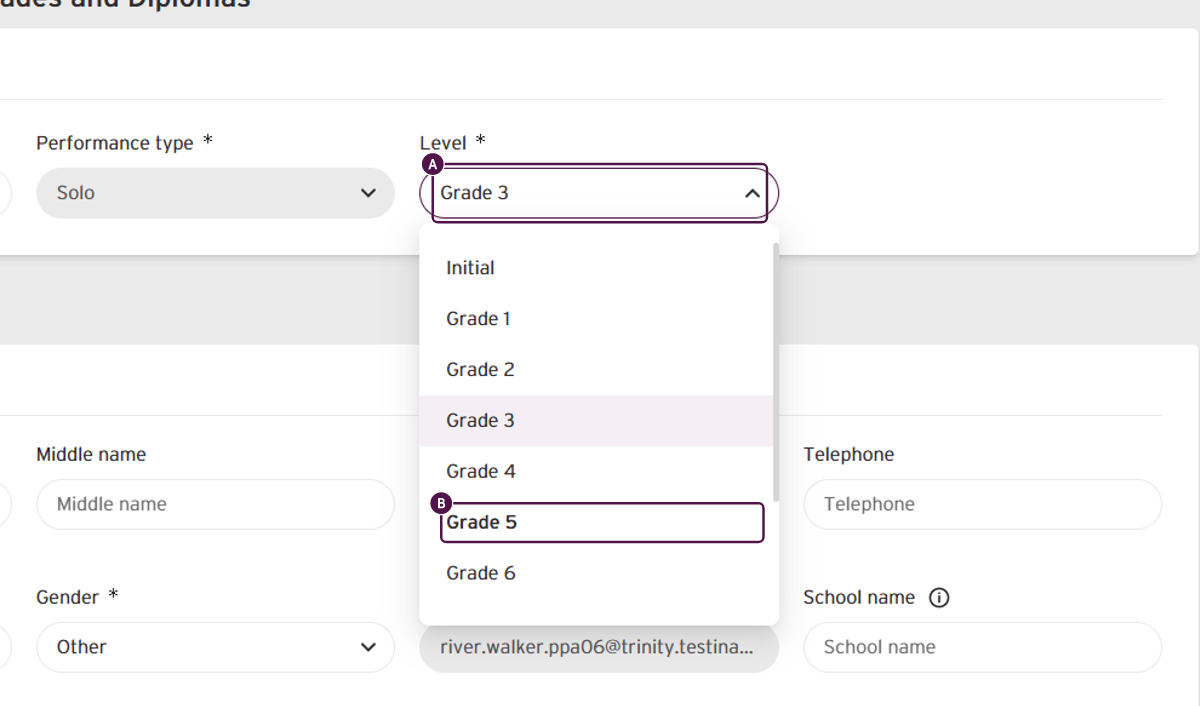
- In this example, the centre is changing the first name and changing the exam from Grade 3 to Grade 5. Individual candidates can be found in the enrolments list.
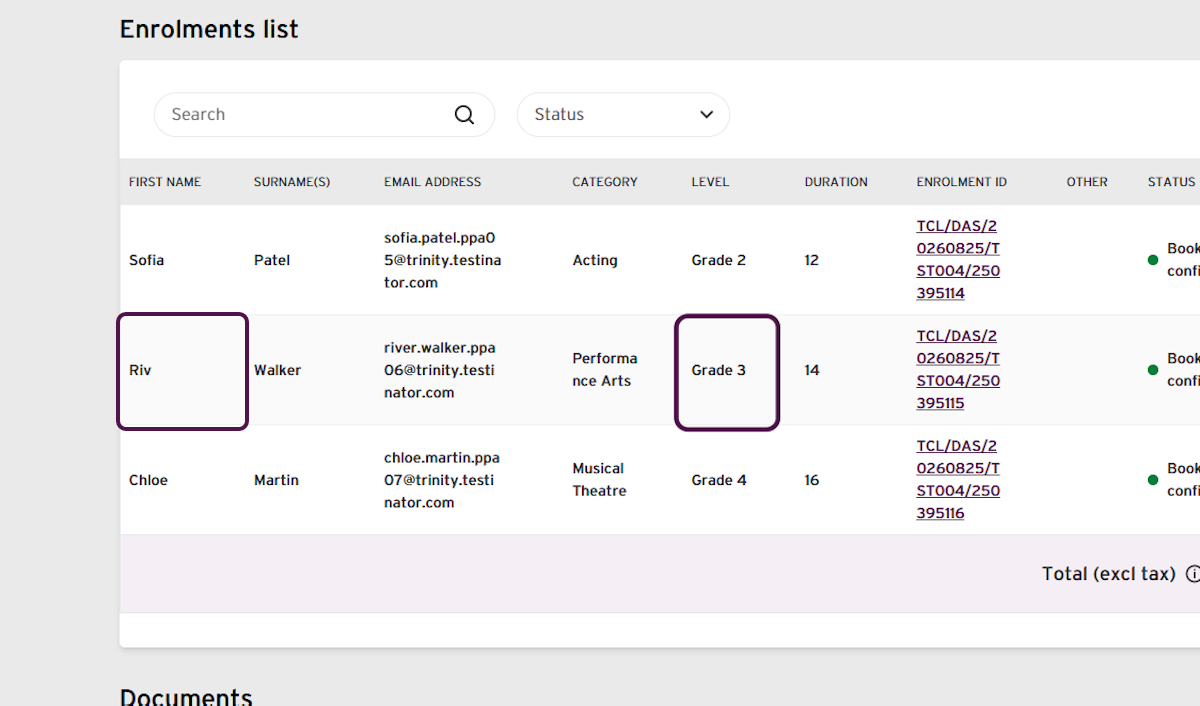
- Select the three-dot menu beside Riv Walker’s enrolment and select Edit.
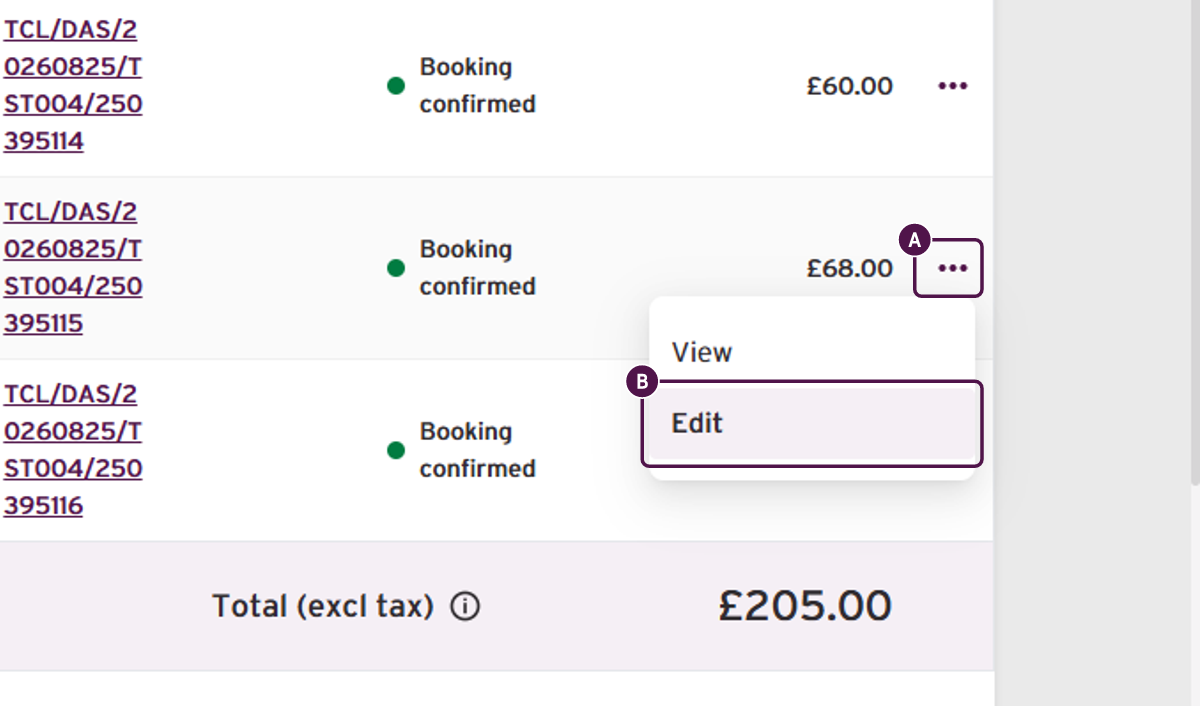
Warning: An exam-selection amendment can only be completed once against an enrolment. Check that you have selected the correct exam before continuing.
- Replace the name in the First name field.
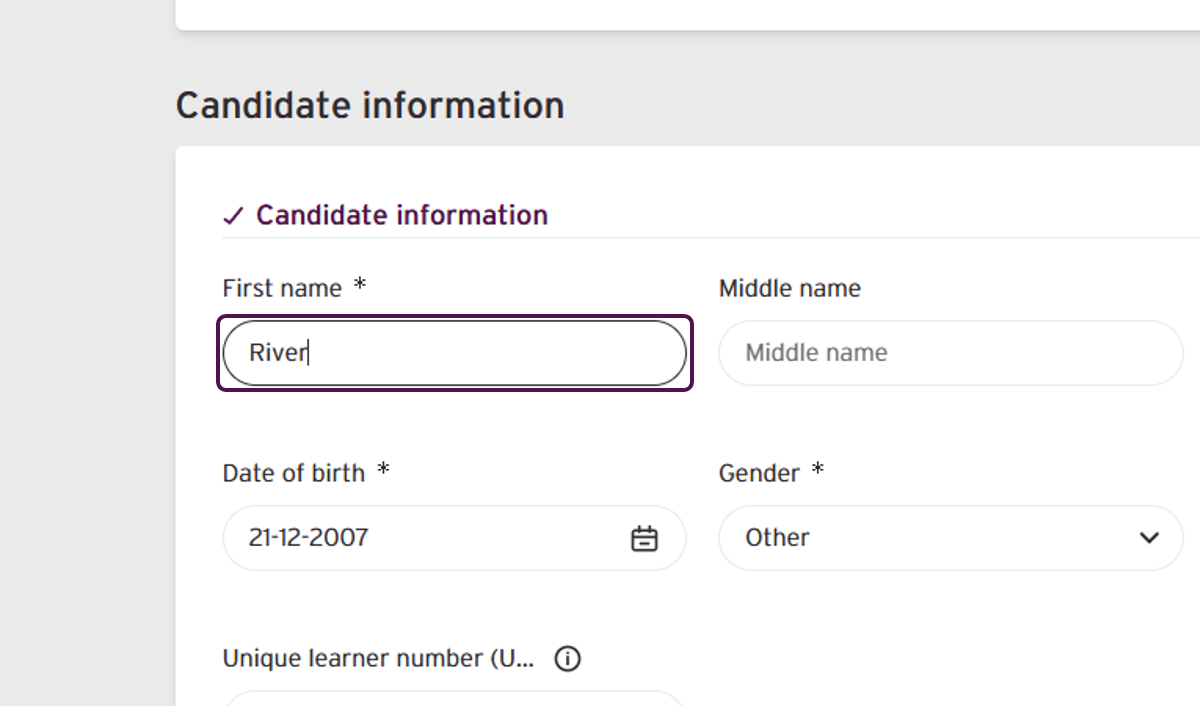
- Open the Level list. Select the required grade.
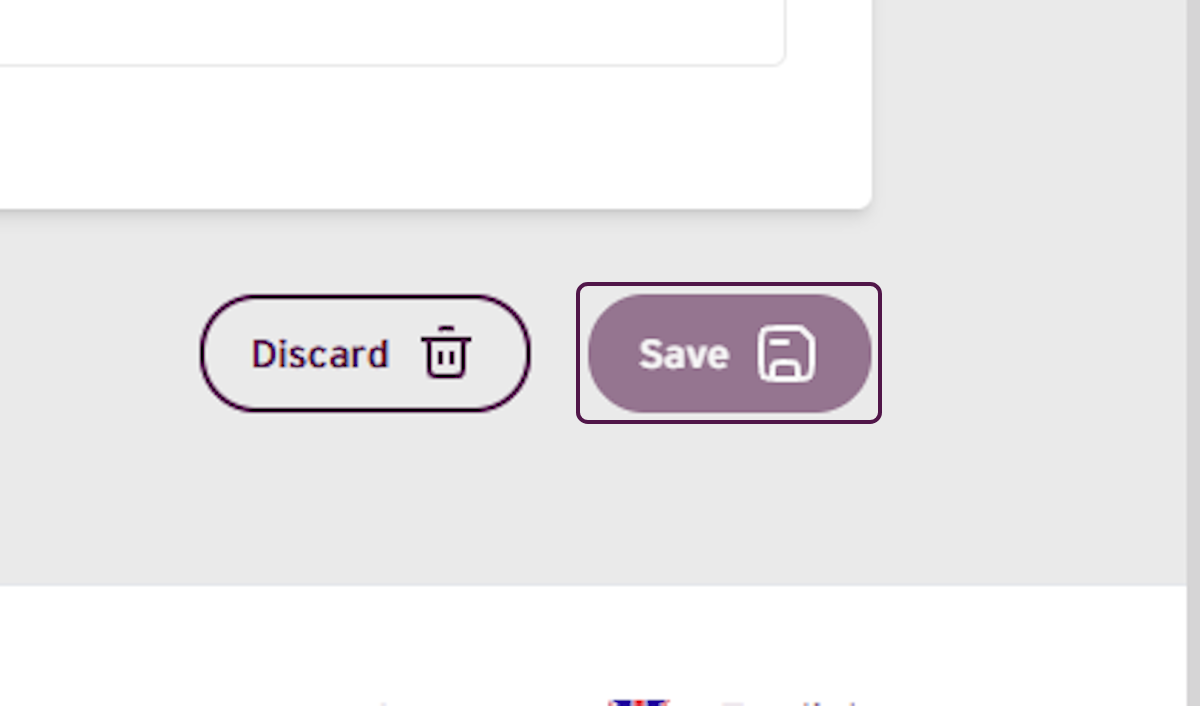
- Select Save to continue.
- Review the confirmation message, then select Confirm.
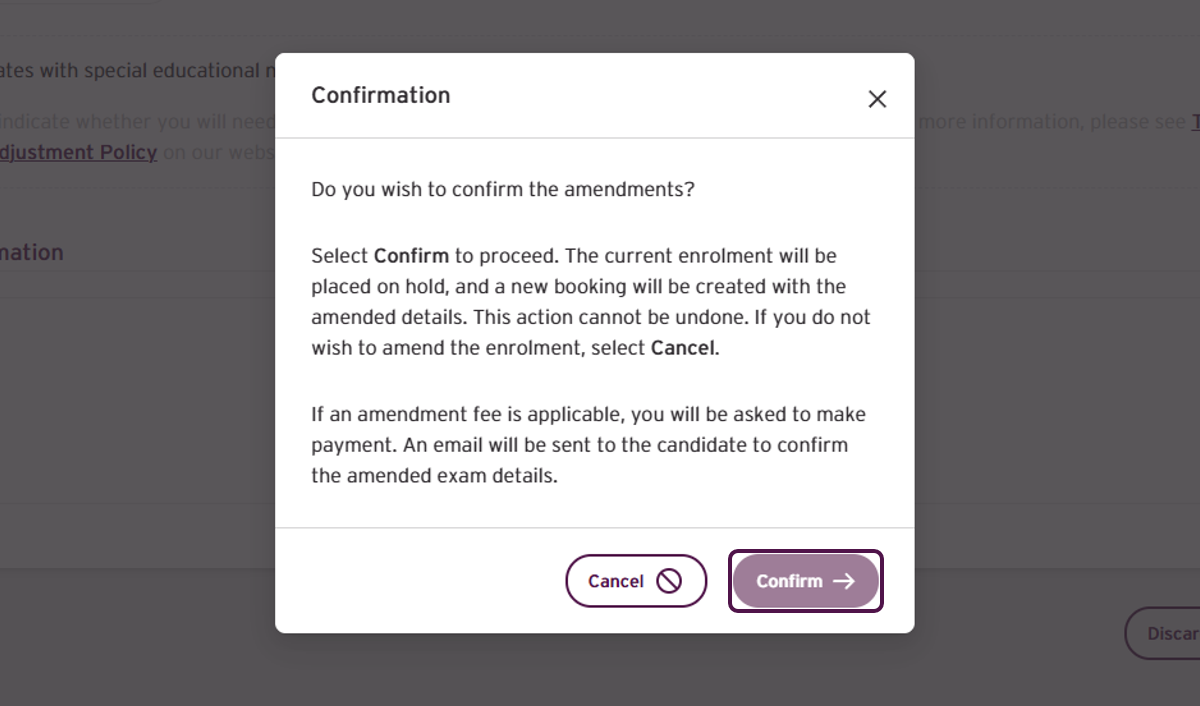
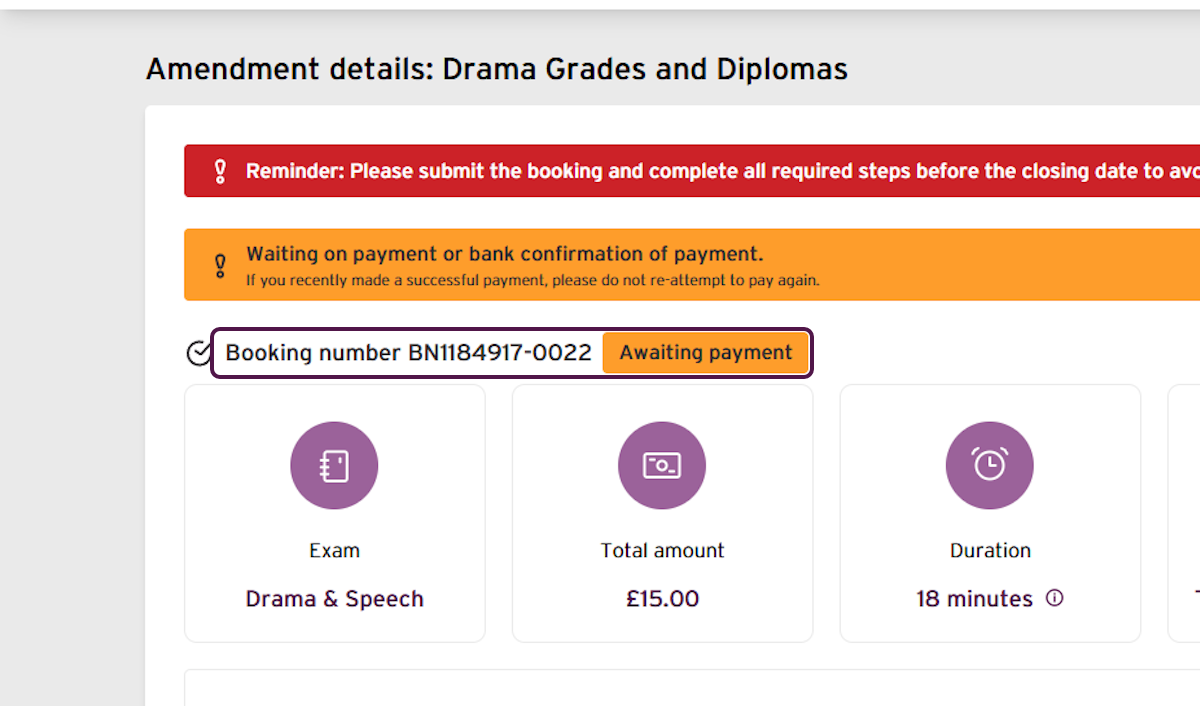
Important: The personal-details change has now been saved. The exam change is not yet complete. The replacement booking is awaiting payment and the original enrolment is on hold until checkout is completed.
- A new booking is created and its status is Awaiting payment.
- Confirm that the original Grade 3 enrolment is On hold.
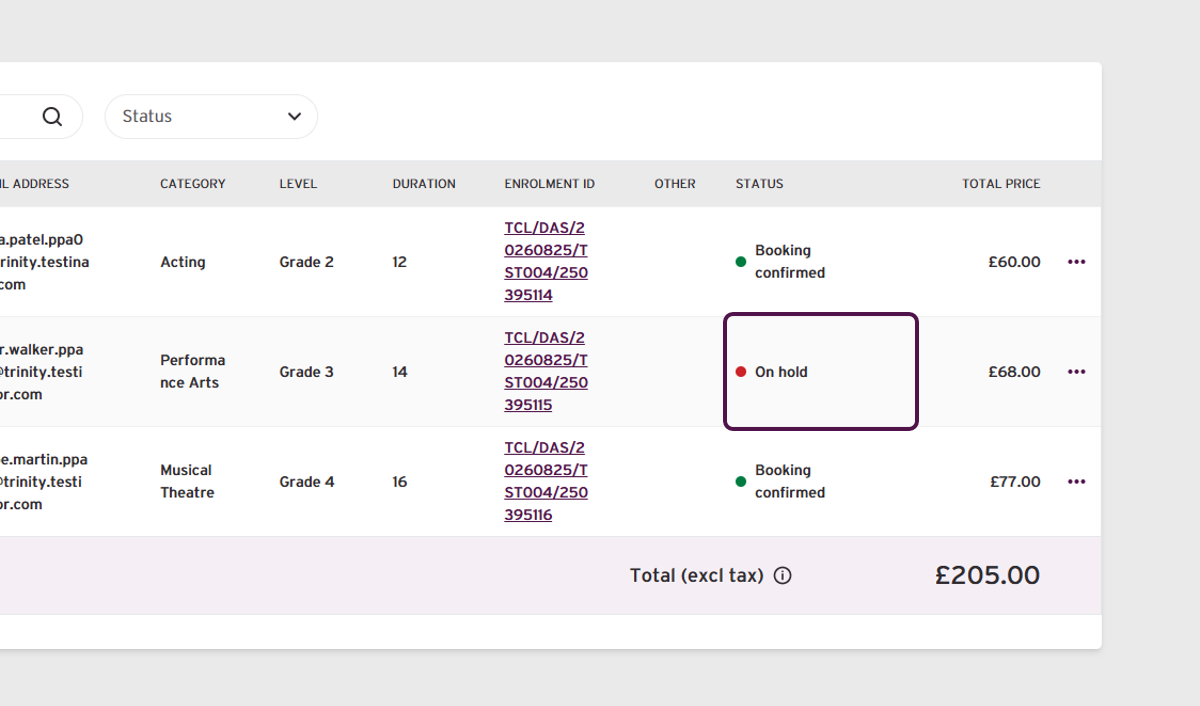
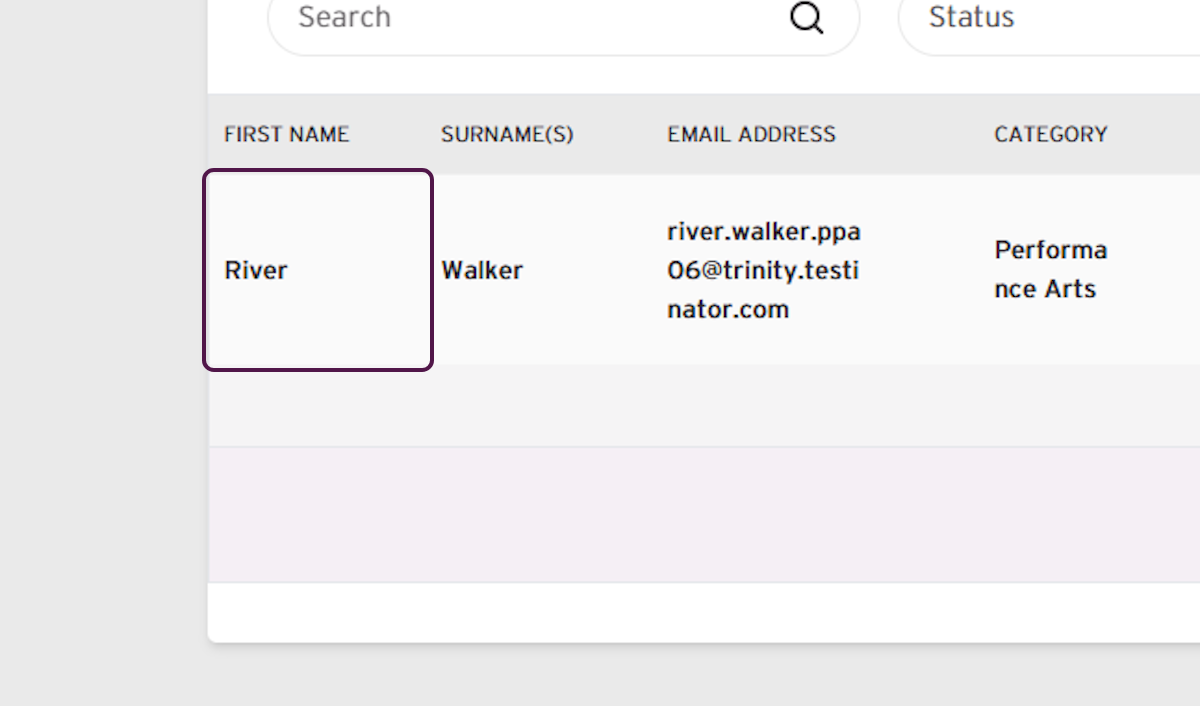
Important: To ensure data is kept accurate, personal detail changes are reflected across all bookings and enrolments.
- Confirm the name is already shown as the candidate’s first name on the original enrolment.
- Return to the new, amended booking and select Submit.
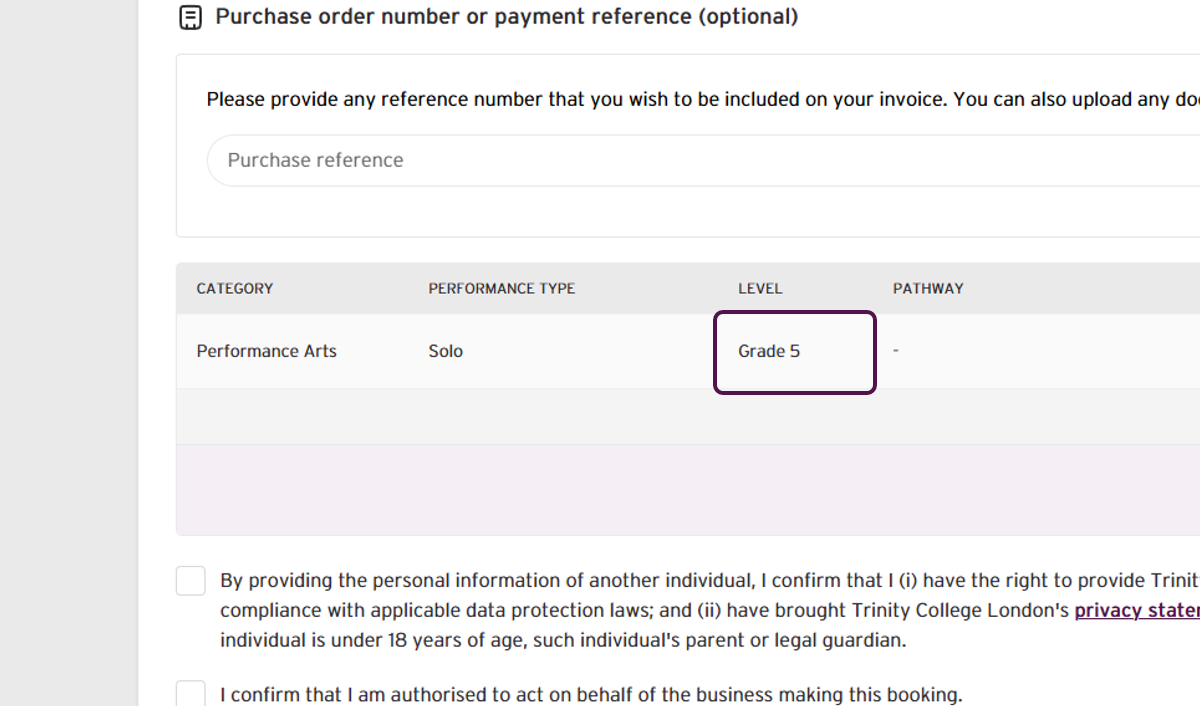
- Confirm that the replacement exam shows the correct grade.
- Read the declarations, then select all checkboxes and agree to the terms and conditions.
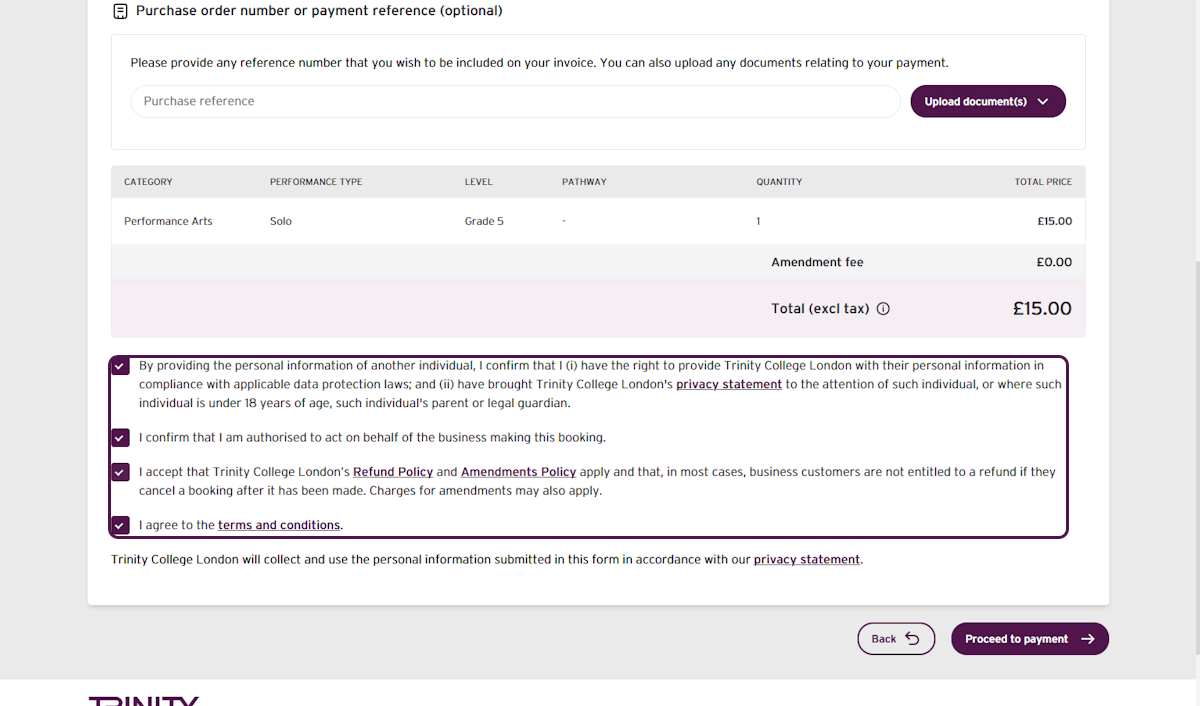
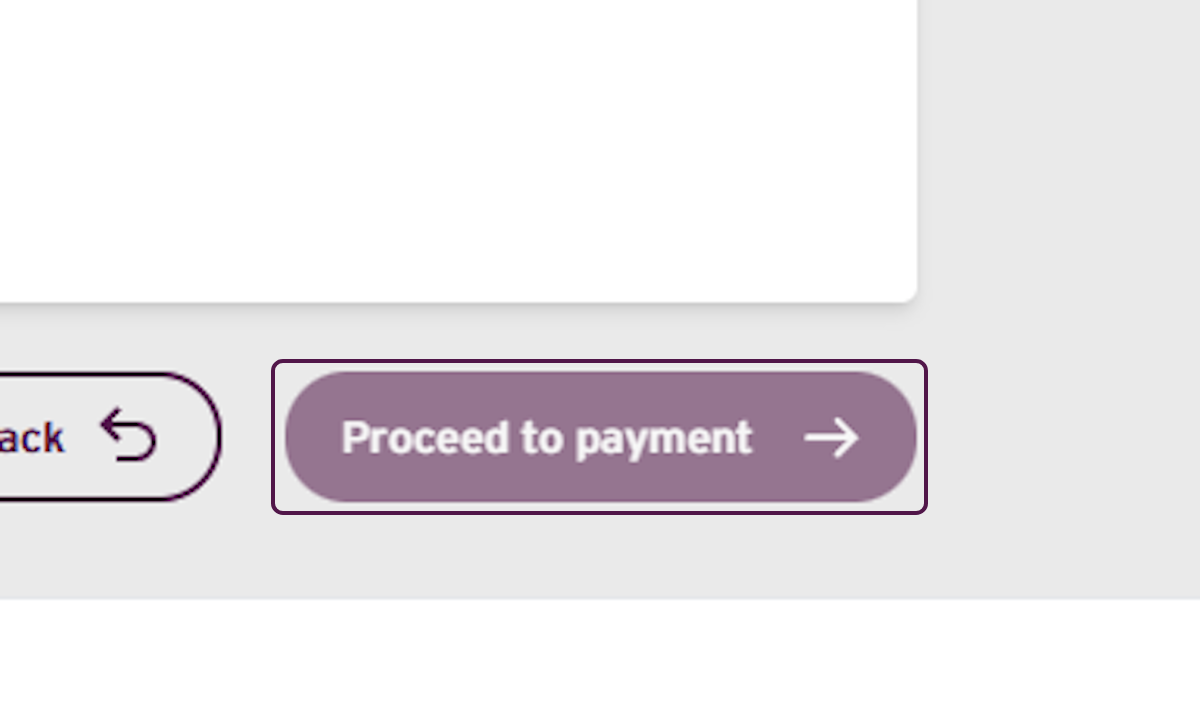
Select Proceed to payment.
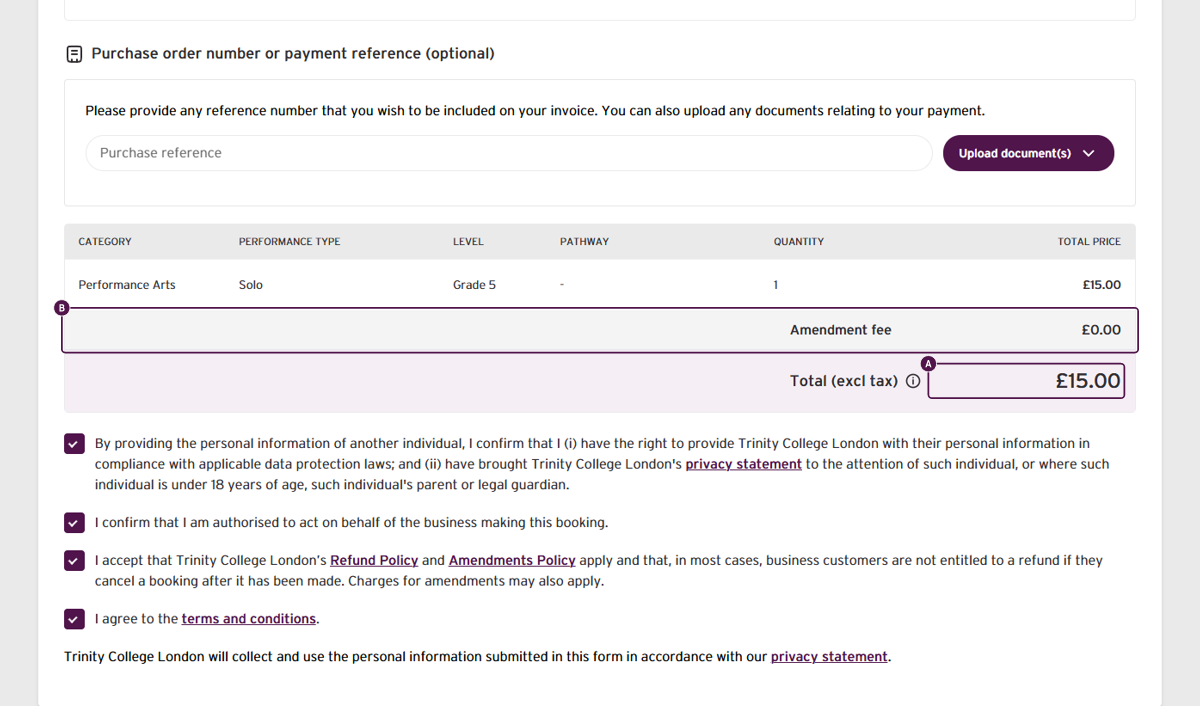
- Confirm that the exam price difference and confirm that the amendment fee is £0.00.
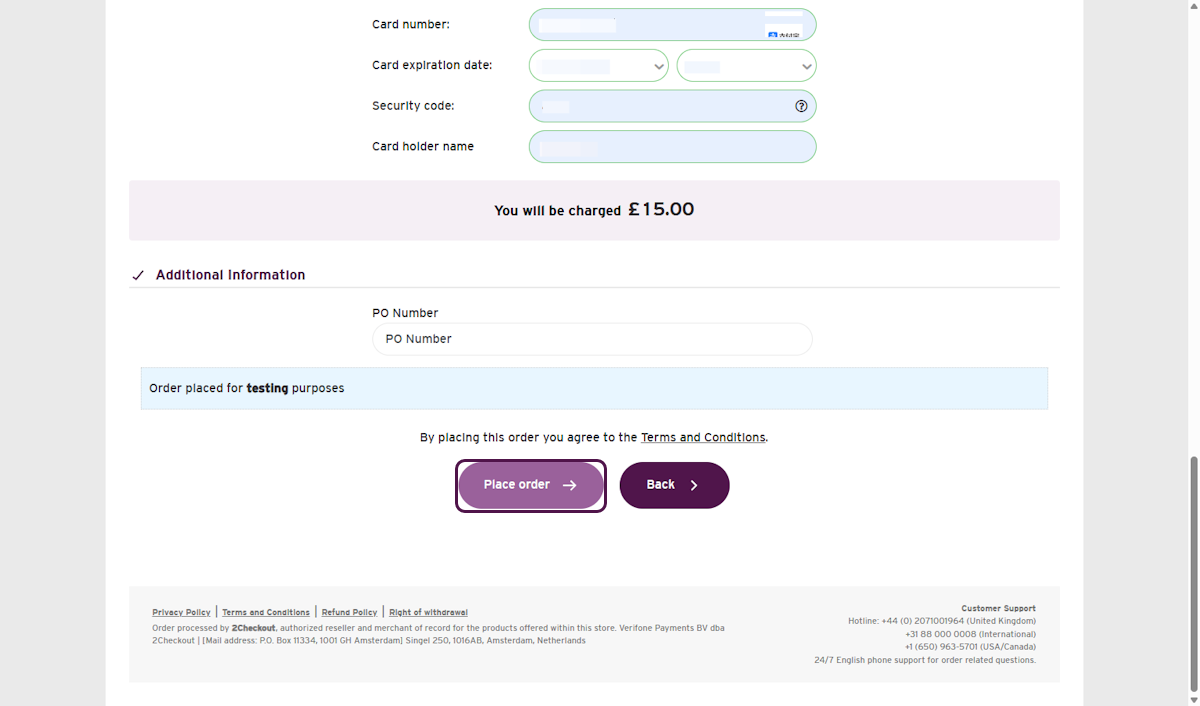
- Enter and review all payment details, then select Place order.
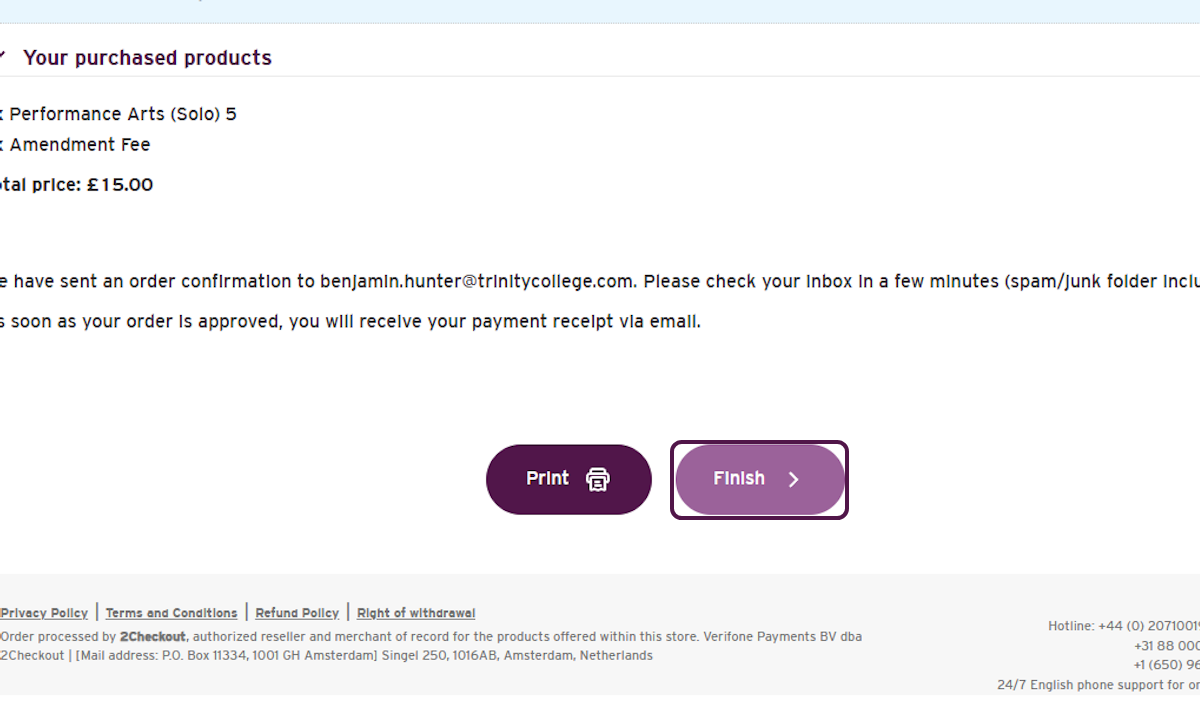
- Confirm that the order was successful. Select Finish.
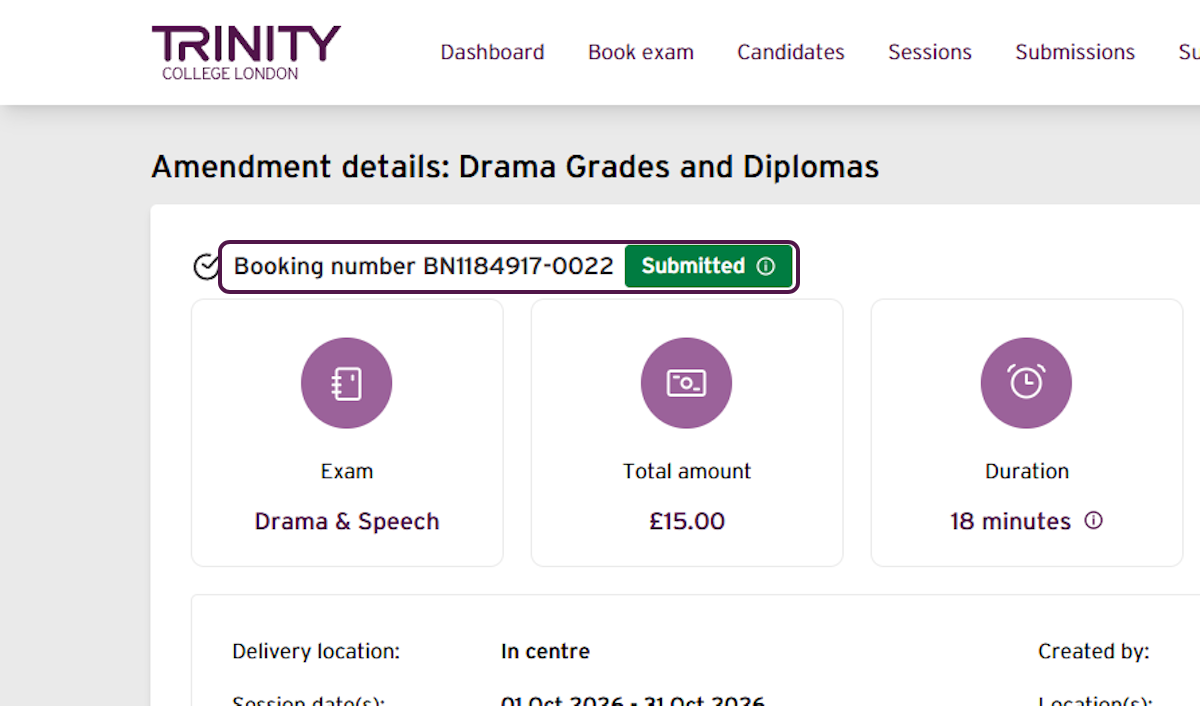
- Confirm that the new booking now shows Submitted.
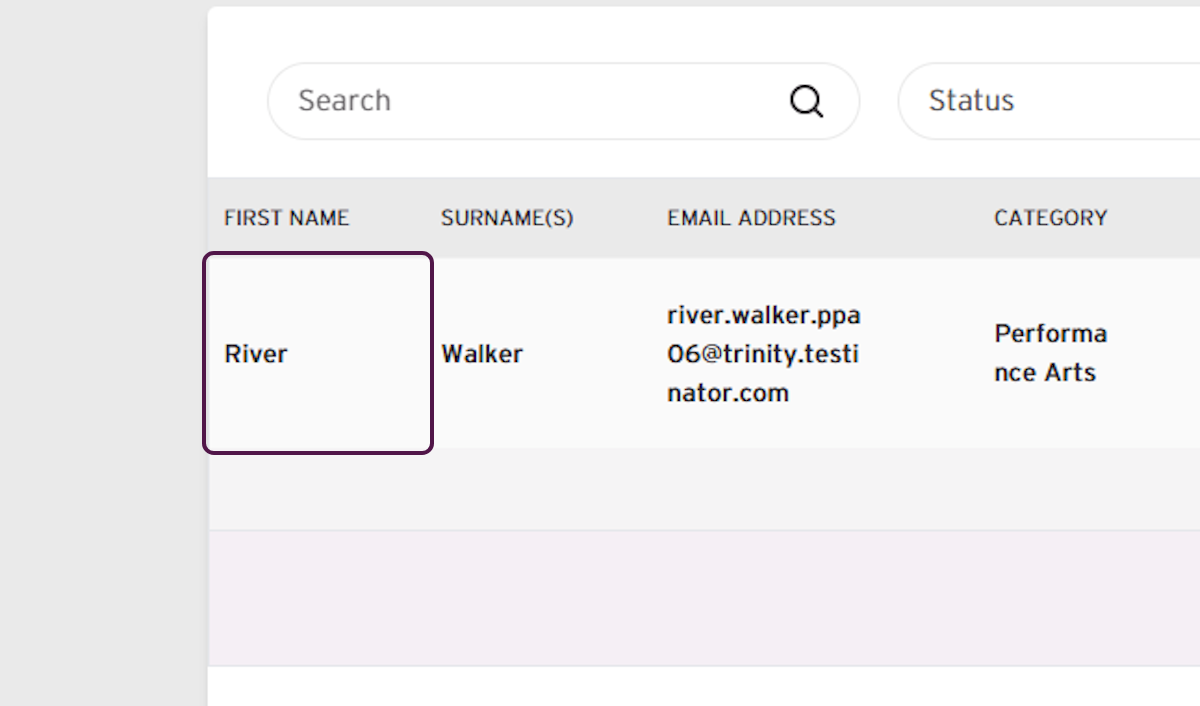
- Confirm the name is shown as the candidate’s first name in the completed replacement booking.
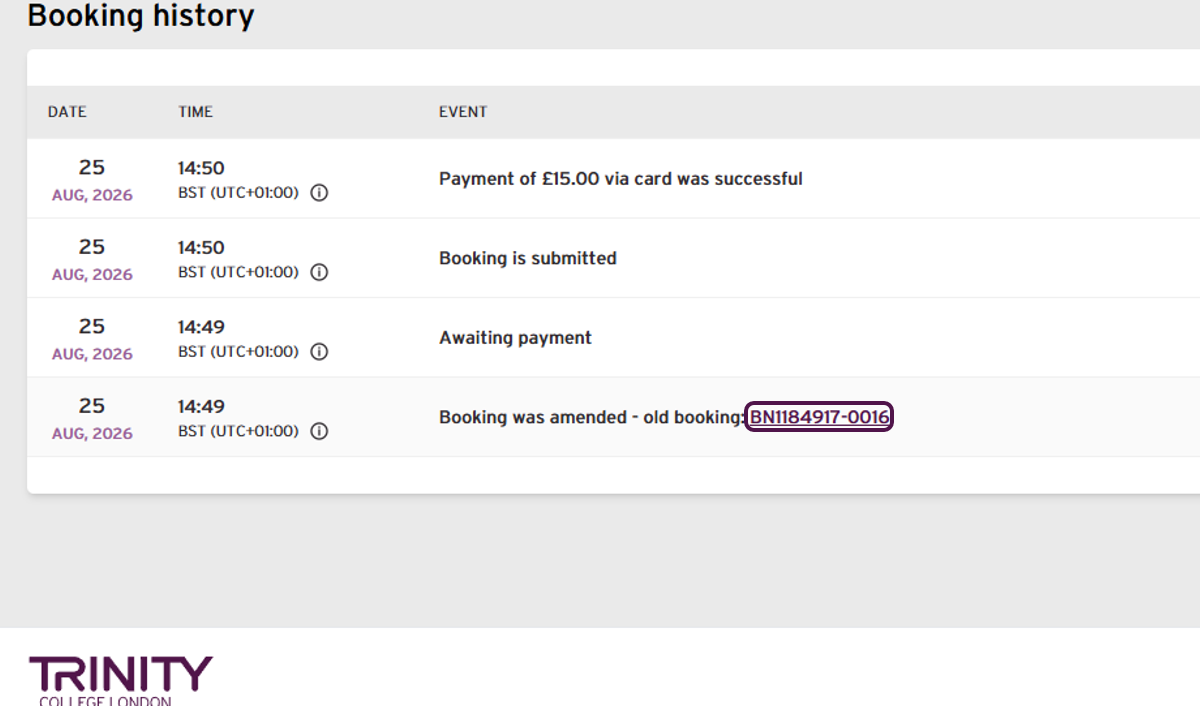
- In the booking history, select the old booking number.
- Confirm that the original Grade enrolment now shows Amended.
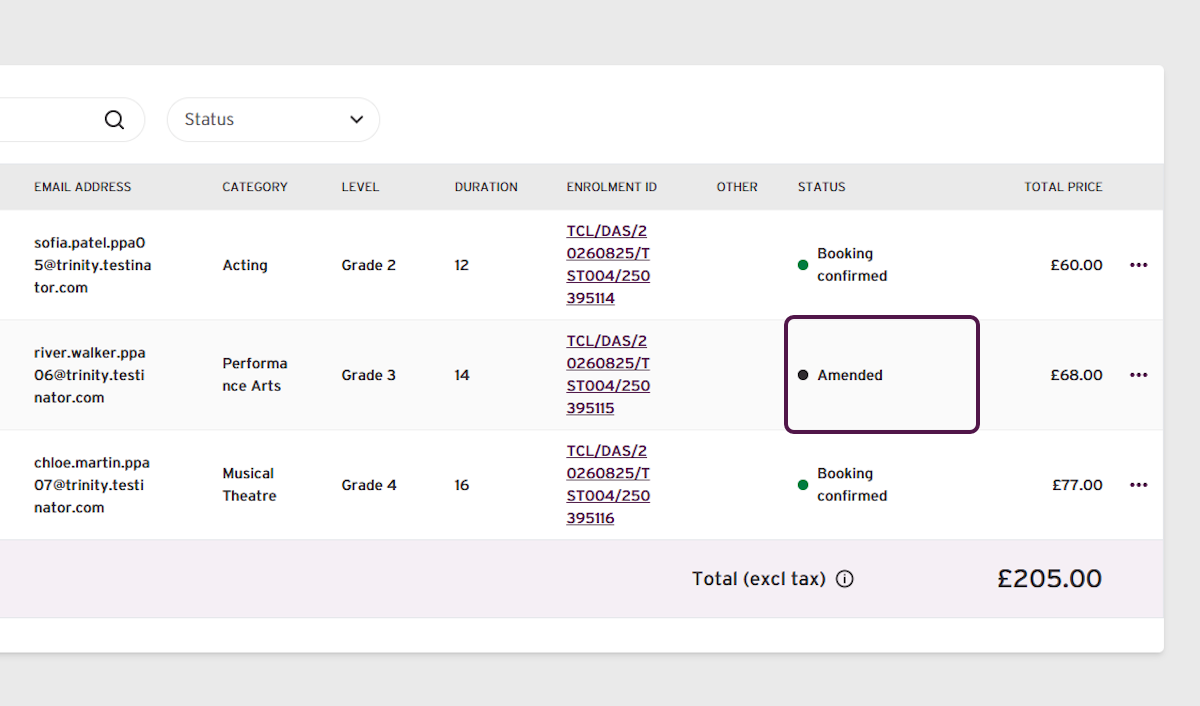
Your amendment(s) are now complete.
If you have any concerns, or do not receive your confirmation email, contact your Trinity support for additional assistance.
Was this article helpful?
That’s Great!
Thank you for your feedback
Sorry! We couldn't be helpful
Thank you for your feedback
Feedback sent
We appreciate your effort and will try to fix the article