Overview
This article explains how to access your Trinity College London digital certificate and badge, what to expect when you receive your certificate email, and how to use the secure access link.
Digital certificates are automatically issued to successful candidates via the Accredible platform and are sent to the email address used during your exam entry.
What is a digital certificate?
A digital certificate is a secure electronic version of your Trinity College London qualification.
It provides official evidence of your achievement and carries the same validity as a traditional paper certificate.
Digital certificates can be:
- Viewed online
- Downloaded as a PDF
- Shared via secure digital links
They also allow faster verification by employers and institutions.
What is a digital badge?
A digital badge is a secure visual representation of your achievement.
It is linked to your digital certificate and includes key details such as:
- Subject
- Level
- Date of achievement
- Result
Digital badges can be shared and embedded in:
- CVs
- LinkedIn profiles
- Digital portfolios
- Email signatures
- Social media platforms
They provide a verifiable digital record of achievement that can be accessed online.
Receiving your digital certificate email
After your exam result is confirmed, you will receive an email from Trinity containing your digital certificate.
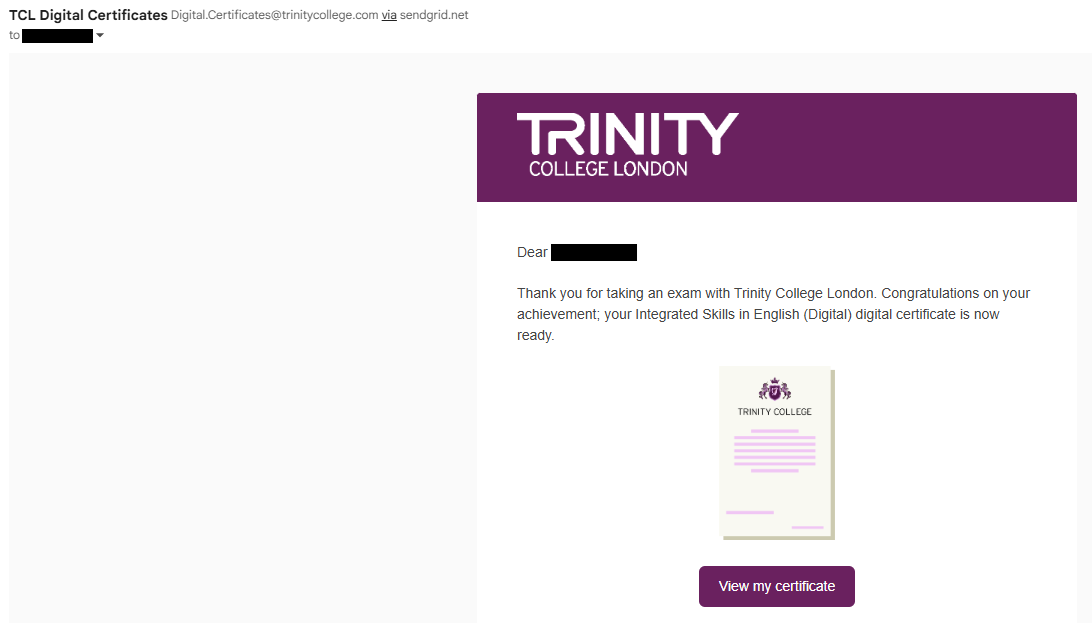
This email includes:
- A secure link to view your certificate
- A link to purchase a paper certificate (where applicable)
Accessing your certificate
Clicking “View my certificate” opens your digital certificate, in a new browser window, via the Accredible platform.
From here, you can:
- View your certificate
- Download it as a PDF
- Share or email it
- Access additional platform features
Creating an account (recommended)
When you first use your link, you will have the option to create an account by selecting “Set a Password”. This is shown at the top of the page:
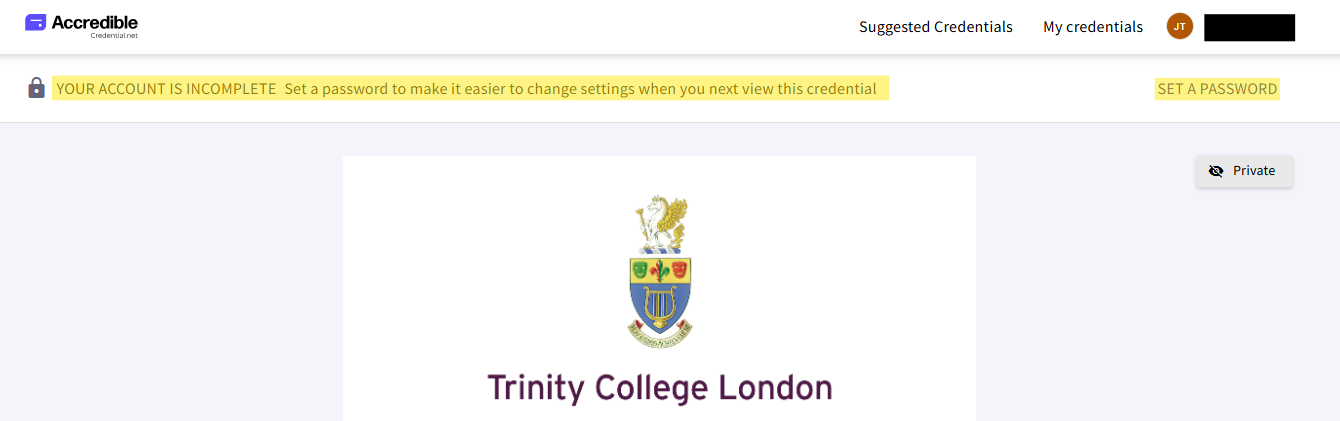
Creating an account allows you to:
- Maintain ongoing access to your certificates
- Avoid needing to request new access links in the future
- Manage multiple Trinity certificates in one place
You do not need to create an account to initially view or download your certificate.
7-day access window
Your certificate email contains a secure one-time access link.
You should use this link within 7 days of receiving the email to access full functionality, including:
- Downloading your certificate
- Sharing your certificate
- Creating an account
When you first access your certificate, you should create an account by selecting Set a Password. This provides ongoing access to your Trinity certificates and avoids the need to request additional access links in future.
If you do not use the original link within 7 days, you will need to request a new link.
If you access your certificate but do not create an account, the one-time access link will no longer provide access to features such as downloading, sharing, or account creation. In this situation, you can request a new link to regain access to these features.
If you create an account, you can continue to access your certificates by logging in, without needing to request new links.
If your link has expired and you did not set an account password
If your link has expired, and you did not set an account password, you will be prompted to request a new one.

Once requested:
- A new email will be sent to your registered email address
- You will regain access to view, download, and share your certificate
- You will be prompted again to create an account if you have not already done so
Sharing your certificate and privacy
Your certificate is private by default.
You should use the sharing tools, shown below the certificate, within the platform if you want to share your achievement.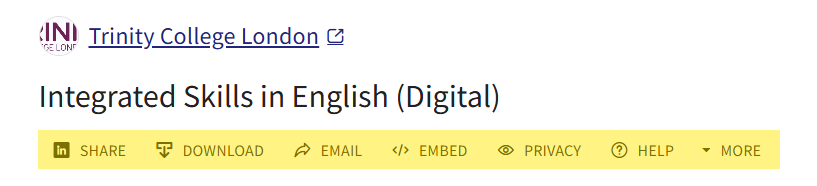
Available sharing options include:
- Secure link (public or private)
- LinkedIn (profile or post)
- Smart Resume
- X (Twitter)
You can also download your certificate as:
- JSON (Open Badge 3.0)
- JSON (W3C Verified Credential)
And embed it in:
- Email signatures (Gmail or Outlook)
- Web pages or portfolios
⚠️ Do not forward your original certificate email link, as it is intended for private access only.
Under 18 candidates
If you are under 18, your certificate will normally be linked to a parent or guardian email address.
This account can later be transferred to your own email address once you turn 18.
Paper certificate option
If you would like a printed certificate, you can purchase one separately, using the link provided in the text of your digital certificate email (scroll below the image):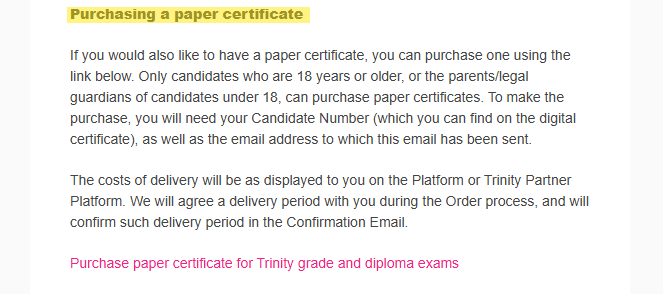
To order a paper certificate, you will need:
- Your Candidate ID (shown on your digital certificate)
- The email address used to receive your certificate
A link to purchase a paper certificate is included in your certificate email.
Summary
To access your certificate:
- Open your Trinity certificate email
- Click “View my certificate”
- View, download, or share your certificate
- (Optional) Create an account by setting a password
If your link expires, you can request a new one using the “Send a new link” option.
Was this article helpful?
That’s Great!
Thank you for your feedback
Sorry! We couldn't be helpful
Thank you for your feedback
Feedback sent
We appreciate your effort and will try to fix the article