Please follow the steps below to cancel your booking on the MyTrinity Platform.
Please note that this guide applies to bookings made for all Digital Performance exams (DGD) and Face-to-Face exam venue booking where no initial exam timetabling takes place.
If you booked a Face-to-Face exam via a venue using our legacy booking platform (you would have been required to select a specific date during the process), please use the instructions found here.
Important information
Within 14 days of booking: If you cancel your booking within 14 days of making it, you will automatically receive a full refund.
After 14 days: If you cancel your booking after the 14-day cooling-off period, you will not receive a full refund.
Digital Grades and Diplomas: Once you have uploaded your performance, you can no longer cancel your booking through MyTrinity. Please contact Trinity Support for assistance.
Booking refunds are usually received in a timescale of up to 7 days.
Step 1: Find your booking
Log in to MyTrinity and select the profile you used to make the booking.
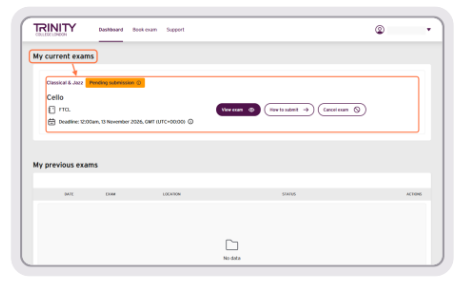
On your Dashboard, go to My Current Exams and find the exam you want to cancel.
Step 2: Cancel your exam
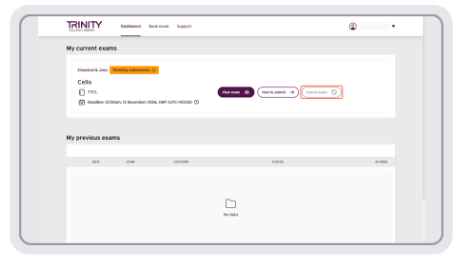
On your Dashboard, find the exam you want to cancel under My Current Exams, then select Cancel exam.
Step 3: Select your reason for cancelling
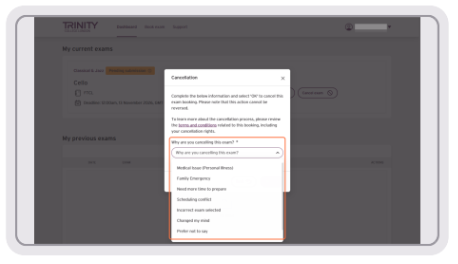
A pop-up window will appear, warning you that cancelling your exam cannot be undone.
You can also use the link provided to review the Terms and Conditions, if needed.
Under Why are you cancelling this exam?, select the reason that applies to you from the list.
Step 4: Confirm your cancellation
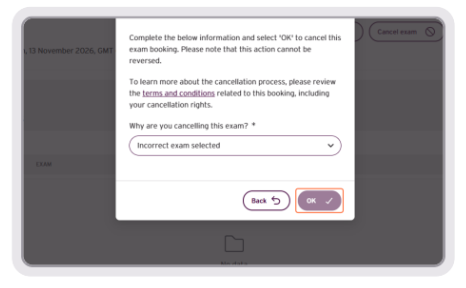
Select OK to confirm and cancel your exam.
Please note: Once confirmed, the cancellation cannot be undone.
Step 5: Confirm your exam has been cancelled
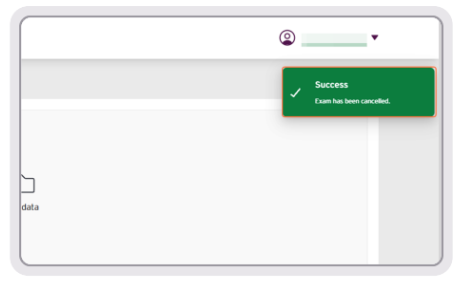
The pop-up window will close, and a confirmation message will appear in the top-right corner of your screen, confirming that your exam has been successfully cancelled.
Step 6: Check your cancelled exam
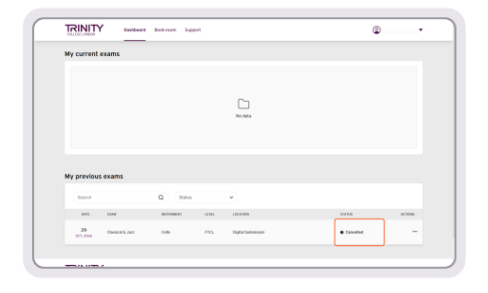
Your cancelled exam will move to My Previous Exams on your Dashboard.
The exam status will now show as Cancelled, confirming that your booking has been cancelled successfully.
If you need any further assistance, please don't hesitate to contact us.
See also:
Amending or Cancelling your Booking
Additional guidance for Advanced Teacher Accounts and Registered Exam Centre Accounts
Was this article helpful?
That’s Great!
Thank you for your feedback
Sorry! We couldn't be helpful
Thank you for your feedback
Feedback sent
We appreciate your effort and will try to fix the article