Centres are advised to launch Secure Browser (https://pages.talview.com/securebrowser/) on every candidate's workstation before the start of the exam.
- To start the test, copy the candidate’s special link (URL) into Edge, Chrome, or Firefox or click the link on the attendance list.
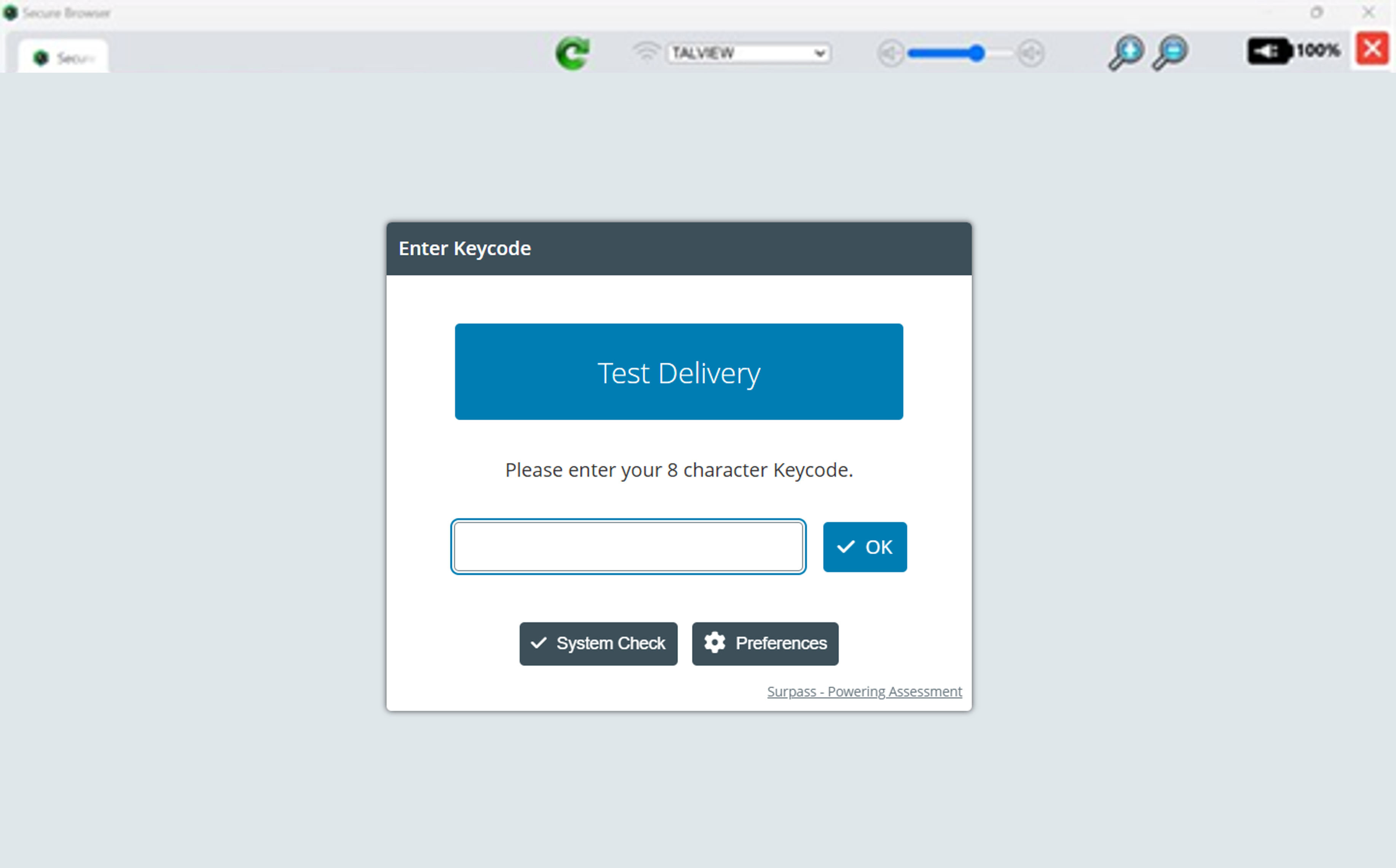
Once candidates have taken their seat at the assigned workstation, the centre will need to
confirm the candidate's identity
read out the invigilation script and
follow all other pre-exam procedures as described in Managing ISE Digital Exam Registration and Supervision
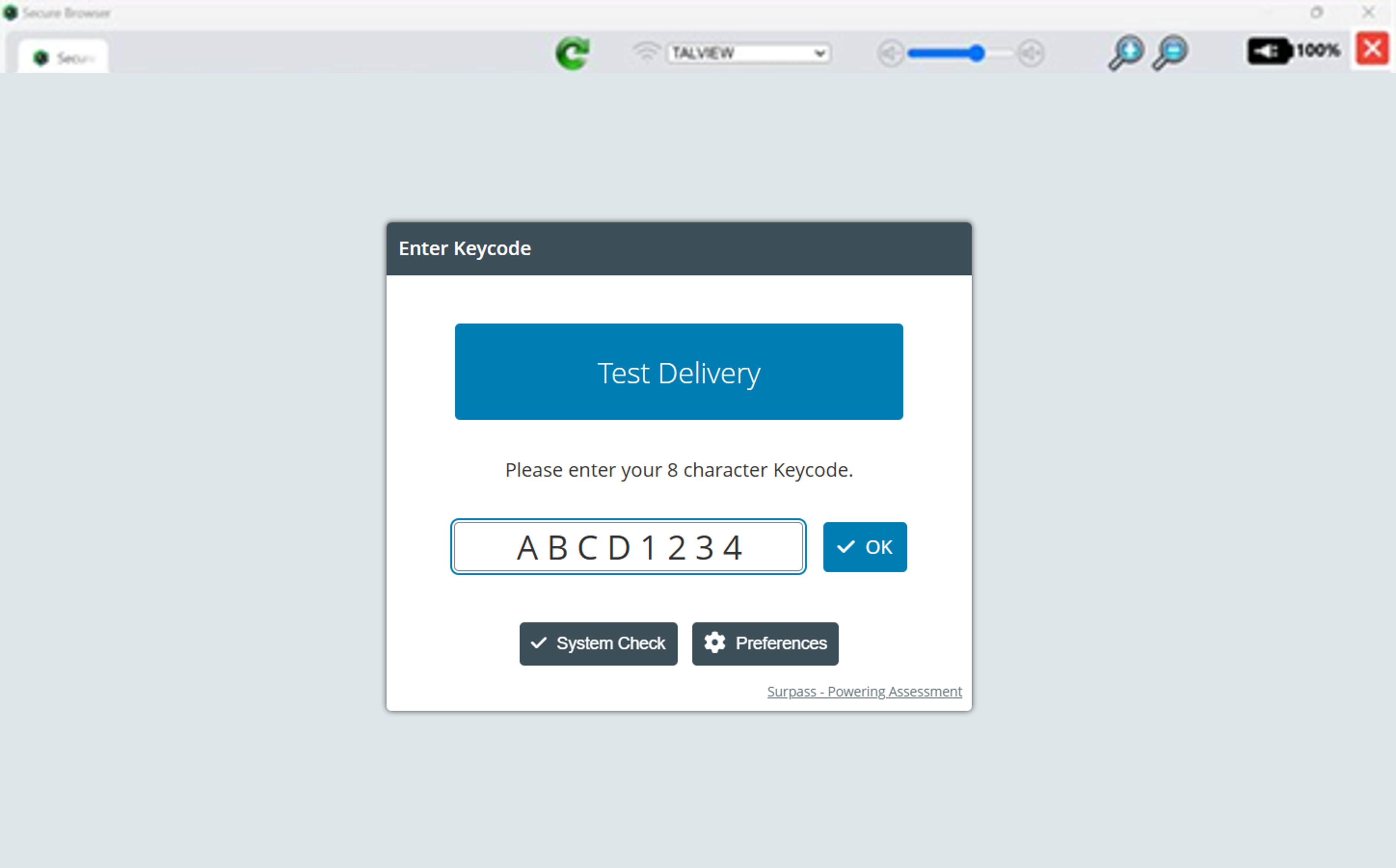
- After completing all pre-exam procedures, candidates should now type their unique keycode in the keycode box to start the exam.
See also:
Managing ISE Digital Exam Registration and Supervision
System Check Before the Start of the Exam
Confirming Microphone & Audio Settings on a Mac
Confirming Microphone & Audio Settings on a PC
Was this article helpful?
That’s Great!
Thank you for your feedback
Sorry! We couldn't be helpful
Thank you for your feedback
Feedback sent
We appreciate your effort and will try to fix the article