Photographic evidence must be captured on exam day for every candidate, without exception. Trinity has developed a portal for submitting this evidence, designed to support swift candidate registration.
Before you start
Have the following information ready:
- Centre number
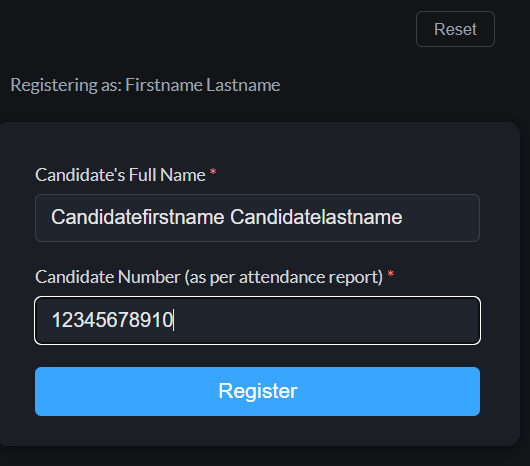
- Candidate number, as shown on the attendance report. Enter only the 11 digits, without the 1- prefix. For example, enter 12345678910, not 1-12345678910.
What you need to submit
| Candidate age | Candidate photo field | Candidate ID field |
|---|---|---|
| 18 and over | A photograph of the candidate taken on exam day | A photograph of the candidate’s ID taken on exam day |
| Under 18, with ID available | A photograph of the candidate taken on exam day | A photograph of the candidate’s ID taken on exam day |
| Under 18, without ID available | A photograph of the candidate taken on exam day | A second photograph of the candidate taken on exam day |
Candidates under 18 are not exempt from the photographic evidence requirement. If no ID is available, you must submit a second photograph of the candidate in the Candidate ID field.
How to submit the evidence
1. Open Trinity’s photo upload portal here
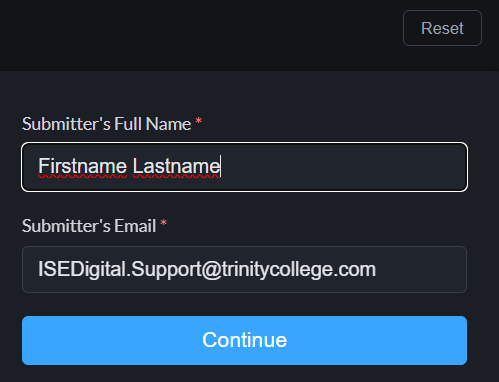
2. Enter your name and email address and click on Continue.
3. Enter the candidate's full name and their candidate number (without the 1- prefix)
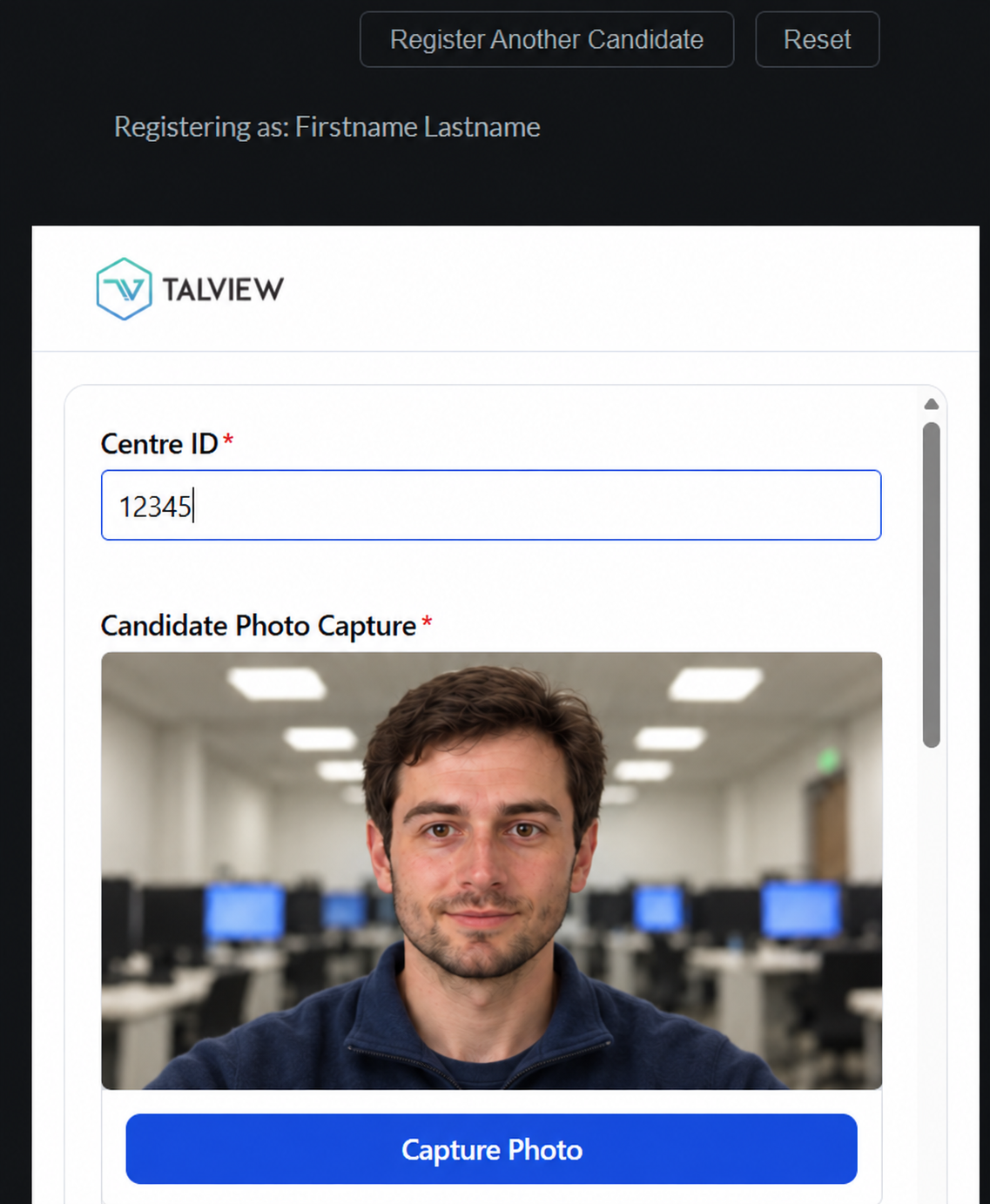
5. Enter your centre ID/number.
4. Using the front camera (webcam or mobile phone camera), take a photo of the candidate (Candidate Photo Capture).
Note: Face detection is enabled. Ensure the candidate is positioned in the centre of the image and close enough to the camera for their face to be clearly visible and detected.
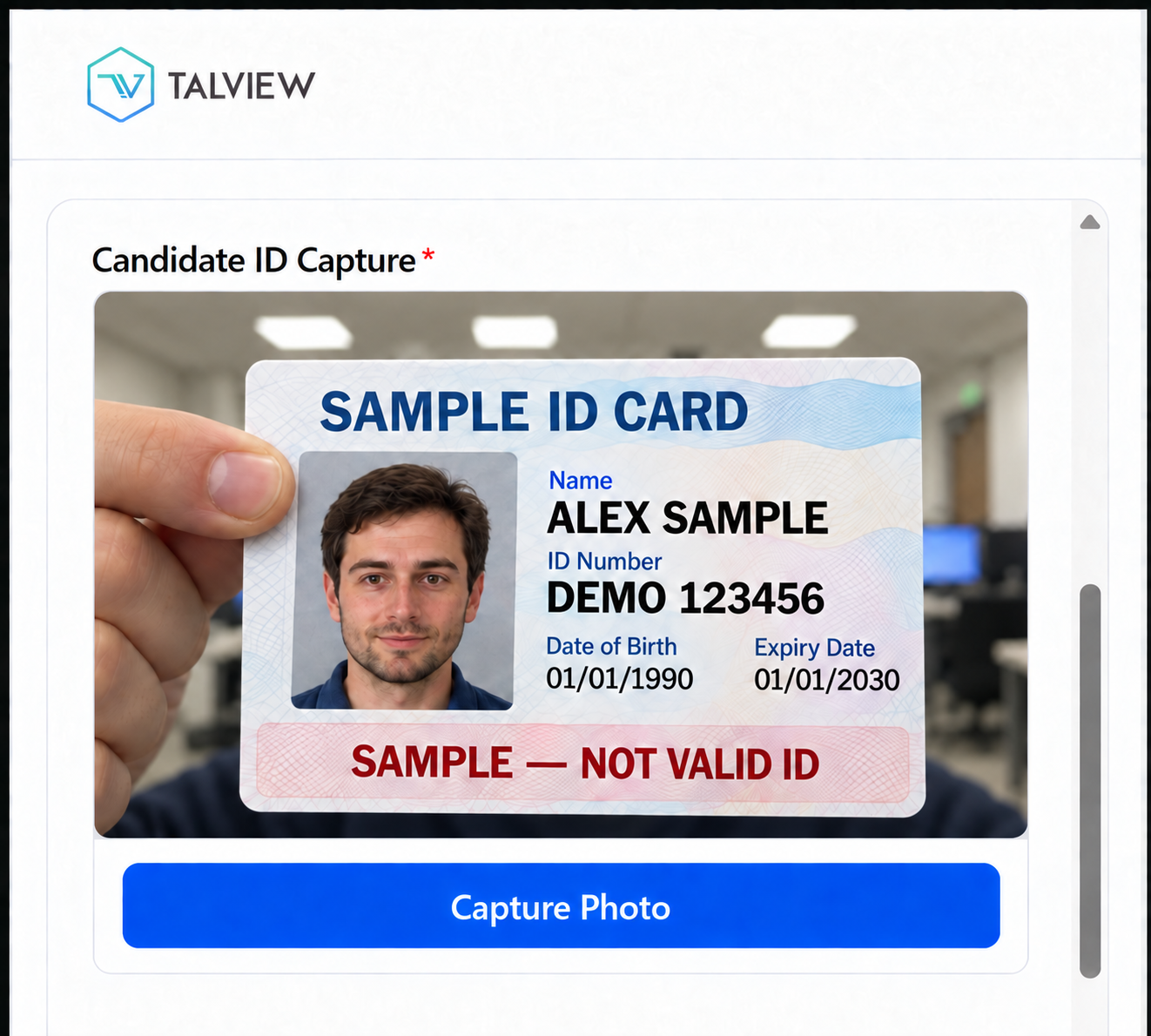
5. Take a photo of the candidate's ID (Candidate ID Capture). For candidates under 18 who do not have ID available, take a second photo of the candidate instead.
6. Accept Trinity's T&C's and Privacy Statement by ticking the checkbox. Then finish by clicking on Submit Form.
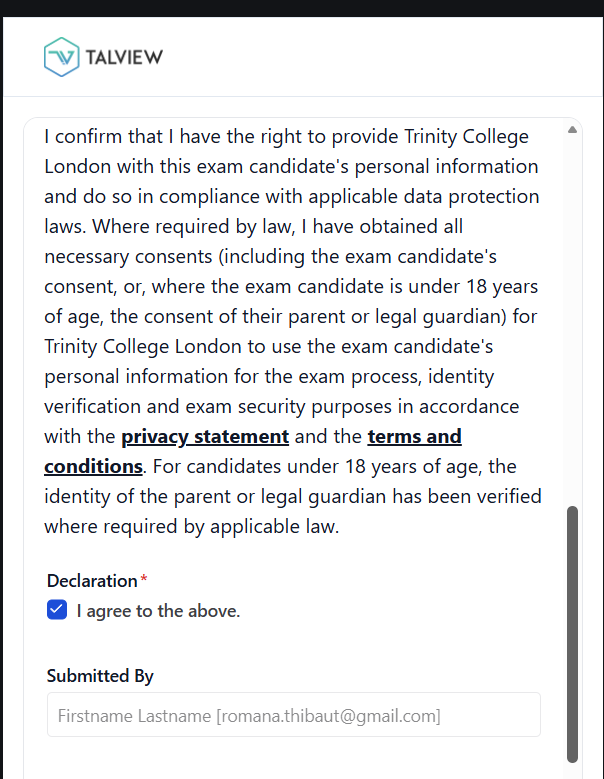
7. If there are further candidates to register, click on the Register Another Candidate button at the top of the page.
See also:
Was this article helpful?
That’s Great!
Thank you for your feedback
Sorry! We couldn't be helpful
Thank you for your feedback
Feedback sent
We appreciate your effort and will try to fix the article