About this delivery model
These guidelines apply to ISE Digital exams delivered in an exam centre using remote proctoring for one candidate per exam sitting.
To check whether in-centre remotely proctored delivery is available to you in your region, please check your MyTrinity account (when booking an exam, you will see the different delivery options available to you) or contact your local Trinity Representative.
The exam takes place in a centre, with the candidate completing the exam alone in a dedicated room. The session is recorded and reviewed as part of Trinity’s quality assurance and security processes.
Centre staff play a key role in ensuring that the exam is set up correctly and that all requirements are met before and after the test.
These guidelines must be used alongside:
- Registered Exam Centre (REC) Requirements and Admin Pack
- Proctoring Rules (Non-permitted behaviour and system flags)
They do not replace existing Trinity requirements relating to:
- Exam room setup
- Candidate identification
- Check of Topic Notes
- Exam security
- Safeguarding
- Incident reporting
Centres delivering remotely proctored exams in their premises or associated venues are required to review and adhere to all instructions outlined below to ensure compliant and accurate test delivery:
- 1. Preparing for the exam
- 3. Setting up the exam
- 4. During the exam
- 5. After the exam
- 6. Compliance and audit

1. Preparing for the exam
Before the exam begins, centre staff must ensure that the candidate, the room and the equipment are fully prepared. As with on-site invigilated exams, centre staff will also need to have the attendance list with unique candidate weblink and exam access code ready on exam day.
Candidate identification
The candidate’s identity must be verified in person, following the same process used for standard in-centre exams.
There is no additional remote identity check, so it is important that this step is completed carefully before the candidate enters the exam room.
Candidates must not bring any unauthorised items into the room. This includes:
- Mobile phones
- Smart watches
- Smart glasses
- Any other electronic or recording devices
Centre staff should ensure that such items are removed or stored securely before the exam begins.
Exam room requirements
The exam must take place in a room that
- is used for one candidate only
- is quiet and free from interruptions
- contains no unauthorised materials or devices
Once the exam has started, no other candidates or staff may enter the room.
All standard REC requirements for exam rooms continue to apply.
Staff availability
Although staff are not present in the room during the exam, they must remain nearby and easy to reach.
This ensures that support can be provided if needed, for example in the case of:
- Technical issues
- Health or safety concerns
If necessary, the candidate may leave the room to seek assistance.
 2. Equipment and technical requirements
This delivery model requires both a primary test device and a secondary camera.
Primary device
The device used to take the exam must:
- Meet Trinity’s technical requirements
- Have a working camera (built-in or external)
Secondary camera
A mobile phone must be used as a secondary camera.
This camera must clearly show:
The candidate (upper body and hands)
The screen, desk, keyboard and workspace
The surrounding area
Centre staff are responsible for positioning the camera correctly (landscape mode) and ensuring it remains stable throughout the exam. It may help lean the phone against some books to keep it steady.
Internet connection
A stable internet connection is essential.
A wired connection is strongly recommended, as the proctoring system requires continuous data transmission.
If the connection is lost and the candidate exits the exam, they will not be able to re-enter that session.

3. Setting up the exam
Centre staff should supervise the setup process to ensure that all steps are completed correctly.
Before launching the exam
Before opening the exam link, the following preparation steps must be completed.
Invigilation script
Centre staff must read the invigilation script for in-centre remotely proctored delivery to the candidate.
This should be done before starting the system setup, so that the candidate understands:
- What to expect during the exam
- What behaviour is permitted
- What will happen if issues occur
Workstation and note-taking rules
The candidate’s workstation must be prepared as follows:
- The desk must be clear
- Only the following items are allowed:
- The test device
- The candidate’s topic notes
The use of pen-and-paper notes is not permitted. Candidates may take notes digitally within the test platform (these notes will be automatically deleted once the exam is submitted)
Internet connection
Centre staff are required to supervise the setup process to ensure that all steps are completed correctly.
Before launching the exam:
Ensure no background software is running (restart the device if needed)
Close all applications on the device
The exam is launched by opening the provided link in a web browser (for example, Google Chrome). This will then automatically redirect to the Secure Browser.
Candidate setup steps
The centre staff and candidate will be guided through a series of on-screen steps:
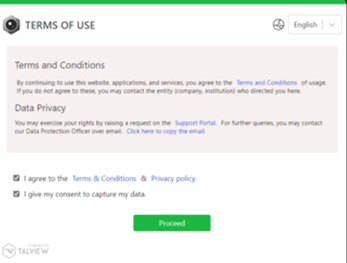
Step 1 - Terms of Use
First, candidates must agree to the Terms of Use and the Privacy Policy by ticking the checkbox.
Step 2 - Hardware checks - microphone and camera
If prompted, allow camera and microphone access in the browser pop-up.
The check starts with an audio test, where candidates must make sure their microphone is working. They do this by clicking “Start Recording” and reading the sentence shown on the screen.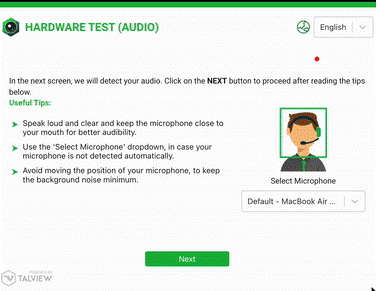
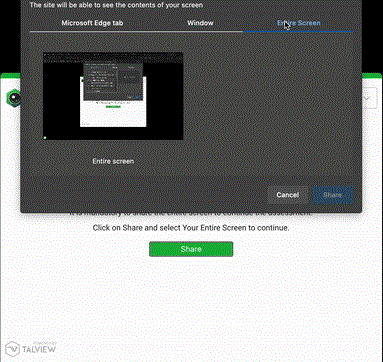
Step 3 - Screen sharing
A pop-up will ask for screen sharing. Candidates need to click Allow or Share, select Your Entire Screen and confirm. Then they should check that screen sharing is working correctly.
Step 4 - Secondary camera
After starting screen sharing, centre staff sets up a second camera using the mobile phone provided by the centre. The mobile phone should be set to "No not disturb" and the orientation (portrait / landscape) should be unlocked.
They will need to scan the QR code shown on the screen and make sure the phone is fully charged and that auto-lock is turned off. Then they will follow the on-screen instructions to complete the setup.
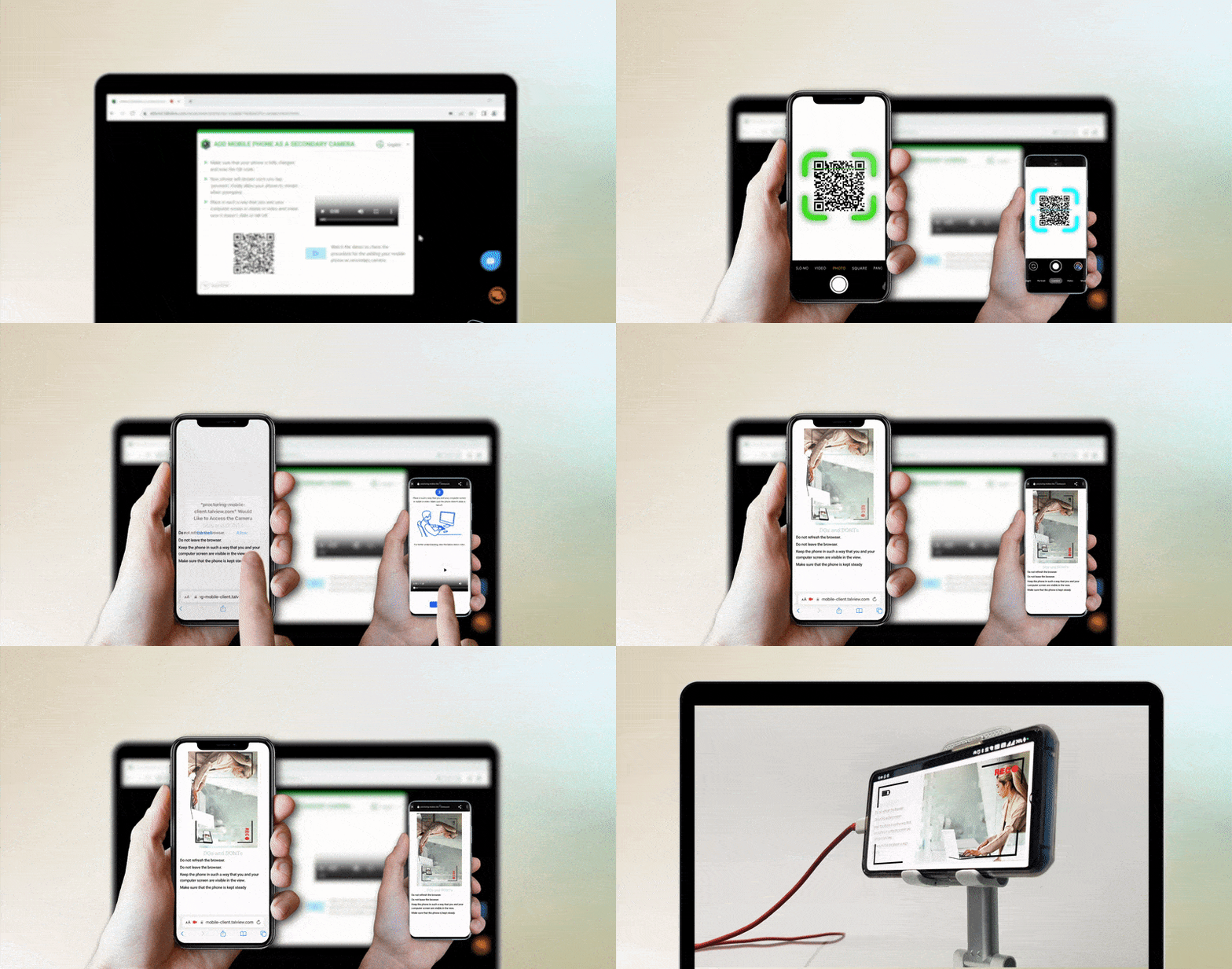
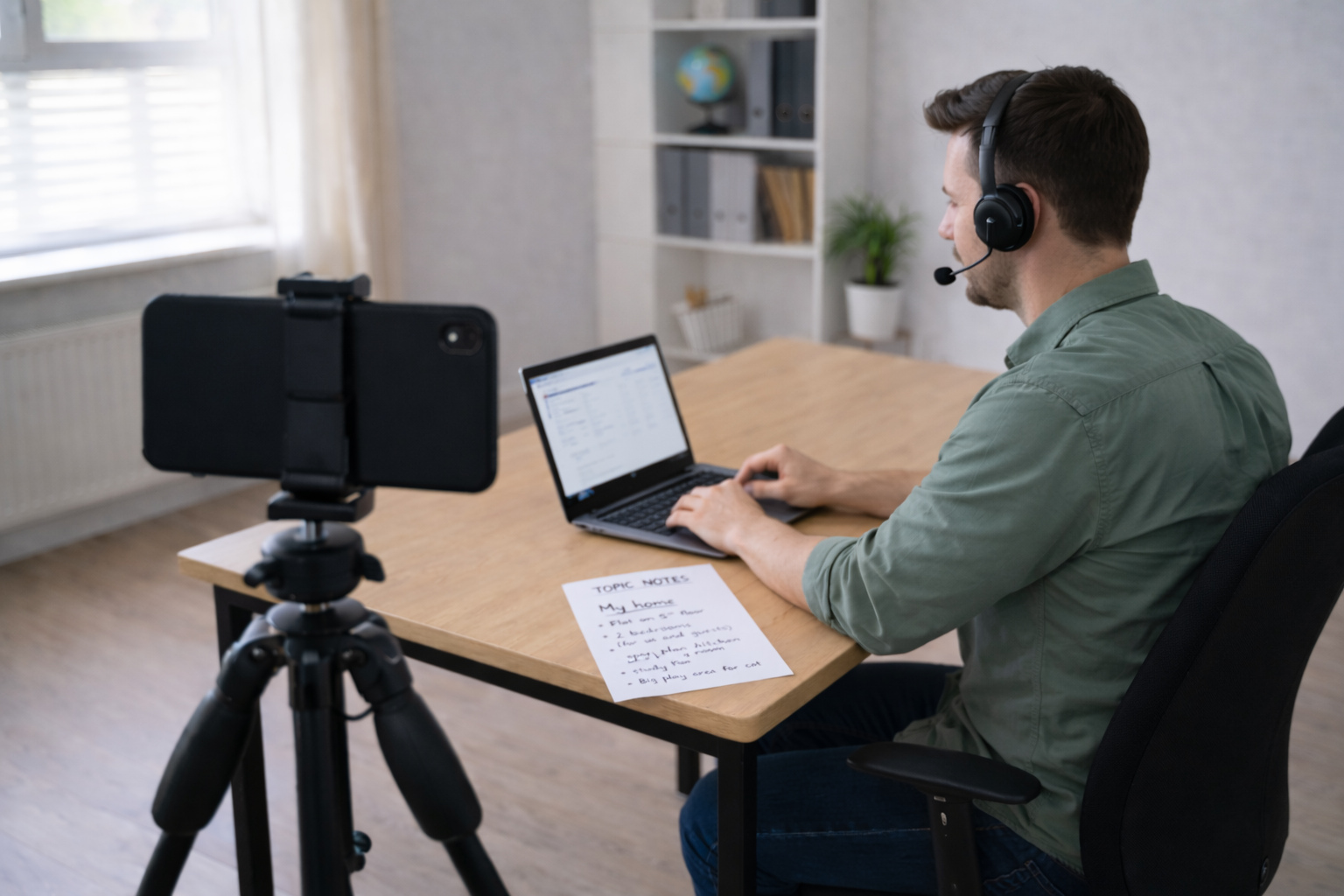
To ensure the candidate and their workspace are captured clearly with the secondary camera, place the mobile phone off to the side, approx. 1-1.5m away from the candidate.
If a tripod is not available, place the phone on a stable surface and support it using a suitable object such as a box, water bottle or flower pot.
The camera of the mobile phone should capture the candidate's face and upper body, laptop screen and keyboard, hands and desk area.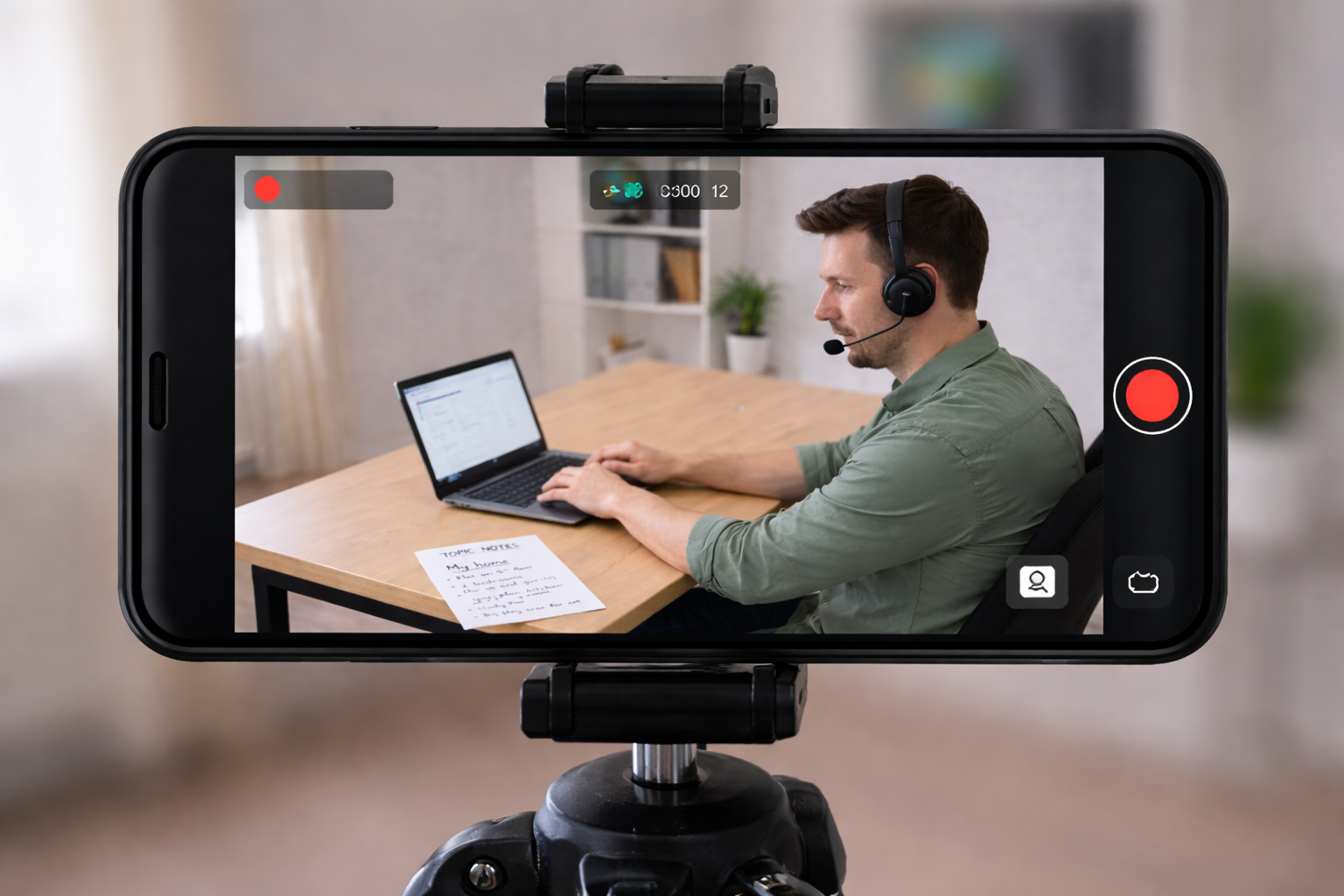
Examples of not permitted camera angles: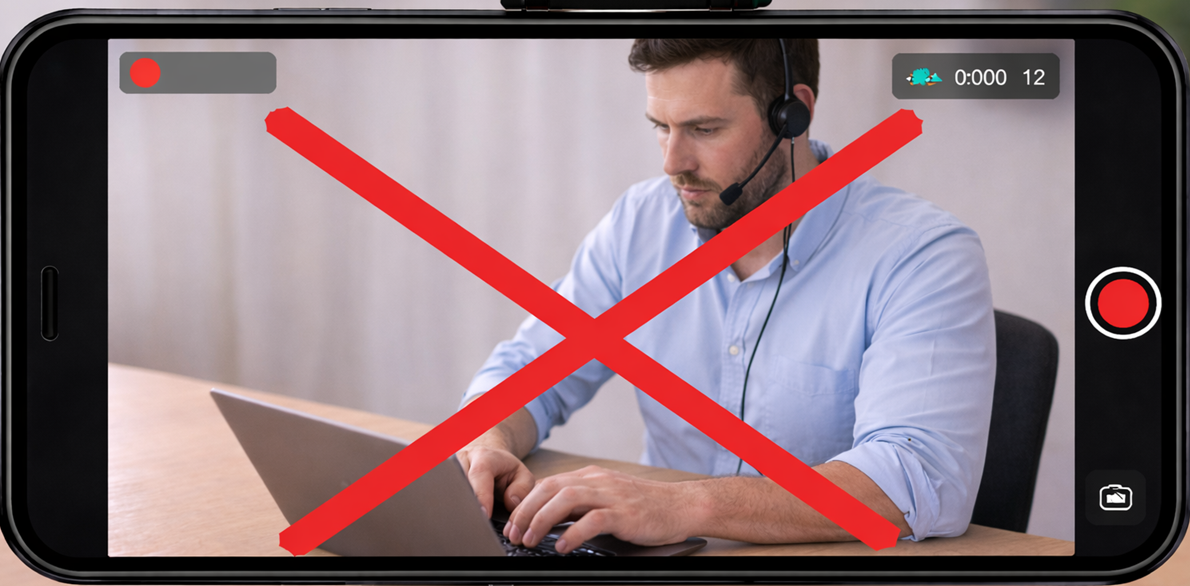
In this view, the mobile phone camera does not capture the laptop screen, the majority of the desk area and the topic notes
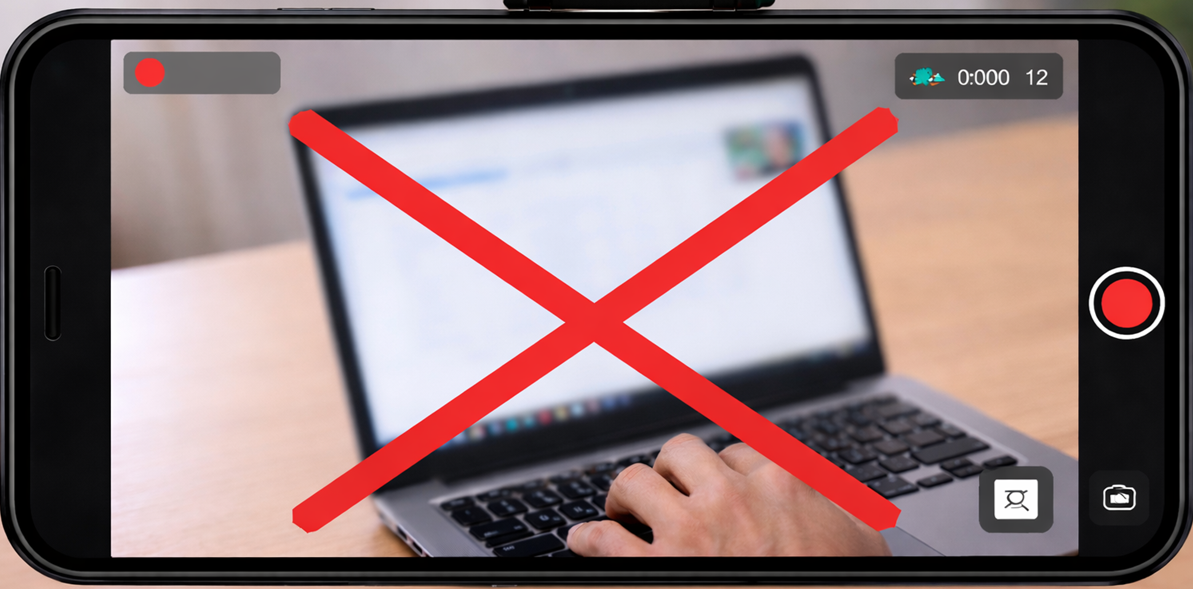
In this view, the mobile phone camera does not capture the candidate, both their hands, the majority of the desk area and the topic notes
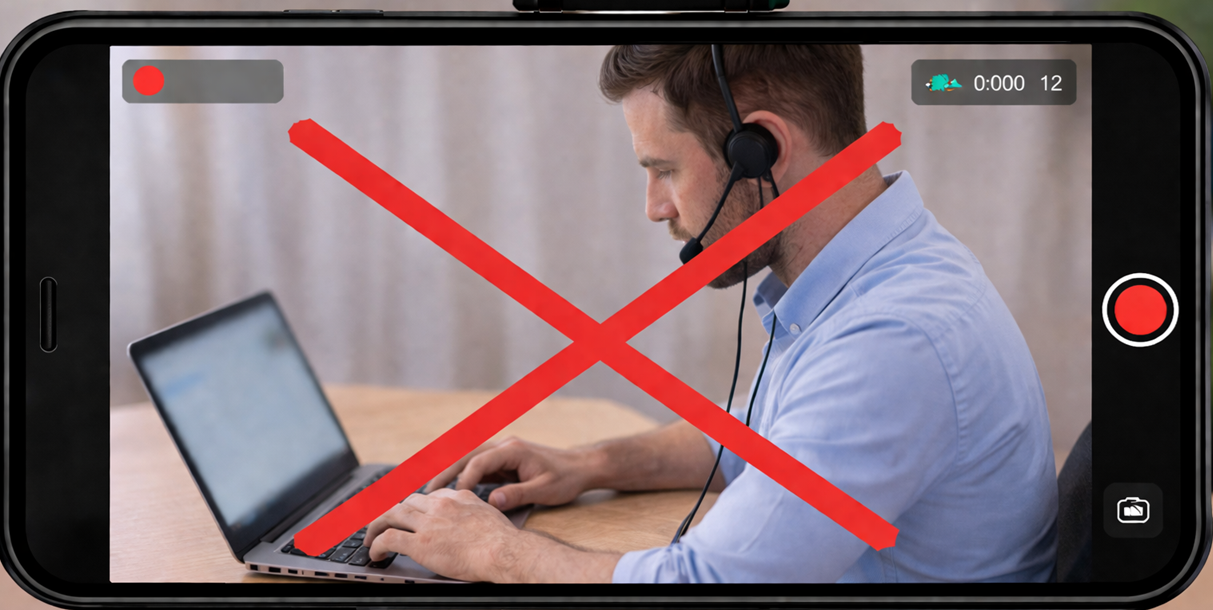 In this view, the mobile phone camera does not capture the topic notes and the majority of the desk area.
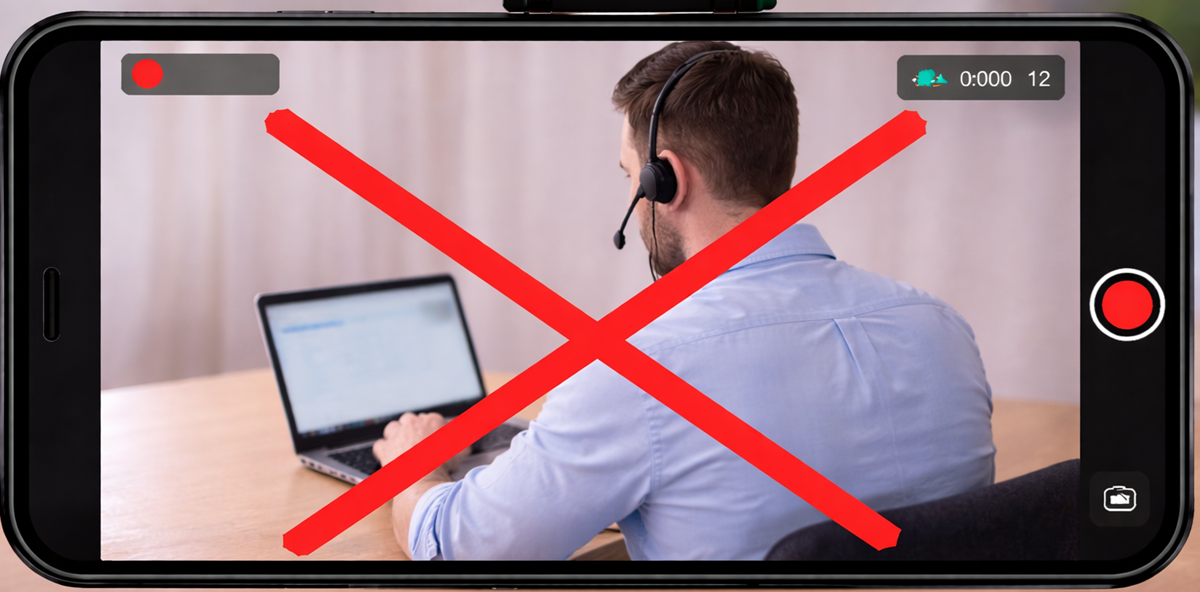
In this view, the mobile camera doesn't capture both the candidate hands or the topic notes.
Step 5 - Behavioural guidance and Topic Notes
Before continuing, the candidate will now need to:
- Review the behavioural rules
- Show their topic notes (front and back) to the secondary (mobile phone) camera. Candidates should hold up the topic notes for approximiately 5 seconds.
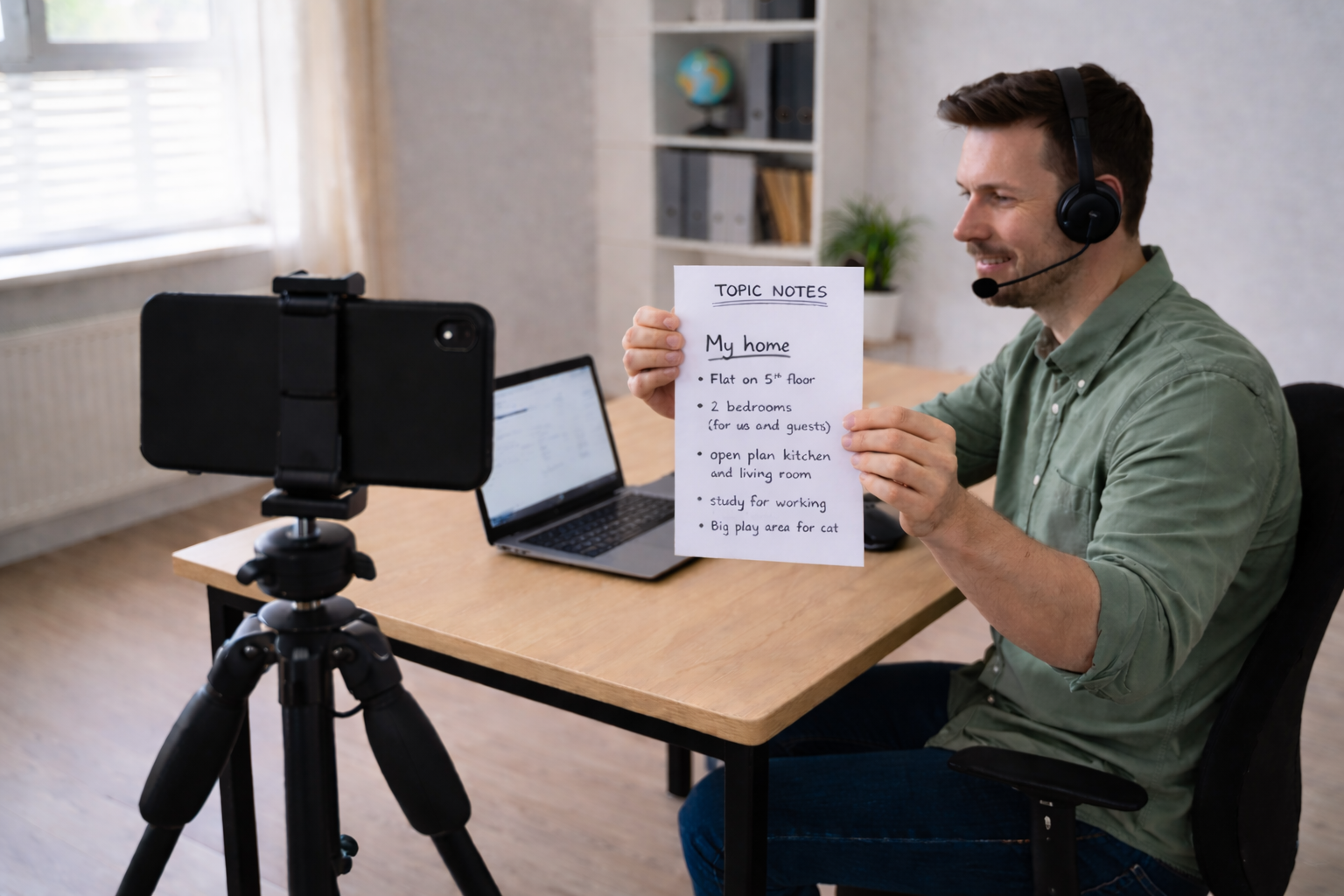

Topic notes must:
- Use the Trinity topic notes template, or
- Be clearly labelled “TOPIC NOTES”
- Contain bullet points only (no full sentences or paragraphs)
Note: Before clicking "Continue", candidates MUST show the front and back of their topic notes (click here for the template) into the mobile phone camera.

4. During the exam
The candidate must remain alone in the exam room for the full duration of the exam. They are only allowed to leave the exam room during the exam in order to seek help.
Centre staff must therefore remain available nearby to respond to:
- technical issues
- health and safety concerns
Centre staff must not interrupt the exam unless there is a clear operational or safety issue.
Once finished, candidates need to click on "End proctor" (top right of the screen). They can now leave the room.

5. After the exam
After the candidate has finished the exam, centre staff must:
- Switch off and remove the secondary camera.
- Ensure the candidate’s topic notes are destroyed.
- Complete the Supervisor’s report, including details of any incidents or irregularities.
All standard post-exam procedures remain in force.

6. Compliance and audit
All recorded sessions are reviewed after the exam.
If issues are identified, such as:
- Unauthorised materials
- Incorrect setup
- Candidate behaviour that breaches the rules
this may result in:
- The exam being invalidated
- Further investigation
- Additional monitoring of the centre
 Centres must ensure all staff involved in delivery are trained on these guidelines before running in-centre remotely proctored sessions.
See also:
Proctoring Rules: Non-Permitted Behaviour and System Flags
Topic Notes for In-Centre Remotely Proctored Exams
Was this article helpful?
That’s Great!
Thank you for your feedback
Sorry! We couldn't be helpful
Thank you for your feedback
Feedback sent
We appreciate your effort and will try to fix the article