IMPORTANT: The guidance below is specific to this delivery model and is in addition to the information provided in “About ISE Digital Exam Delivery” and “Core ISE Digital Exam Delivery”.
About this delivery model
These guidelines apply to ISE Digital exams delivered in an exam centre using remote proctoring for two or more candidates in the same exam room.
To check whether in-centre remotely proctored delivery is available in your region, please check your MyTrinity account (when booking an exam, you will see the different delivery options available to you) or contact your local Trinity Representative.
The exam takes place in a centre, with candidates completing their exams at individual workstations in a shared exam room. Each candidate's exam is recorded using the webcam on their computer.
Centre staff play a key role in ensuring that exams are set up correctly and that all requirements are met before and after the test.
These guidelines must be used alongside the core ISE Digital exam delivery processes and the:
- Registered Exam Centre (REC) Requirements and Admin Pack
- Proctoring Rules (Non-permitted behaviour and system flags)
These guidelines do not replace existing Trinity requirements relating to:
- Exam room setup
- Candidate identification
- Check of Topic Notes
- Exam security
- Safeguarding
- Incident reporting
Centres delivering remotely proctored exams in their premises or associated venues are required to review and follow the instructions below.
1. Preparing for the exam
Before the exam begins, centre staff must ensure that all candidates, the room and the equipment are fully prepared. As with on-site invigilated exams, centre staff will also need to have the attendance list with unique candidate weblinks and exam access codes ready on exam day.
Candidate identification
Centre staff must check each candidate's ID in person before the exam, following the standard in-centre process.
Candidates will also need to capture an image of their ID and themselves using the webcam on their exam computer.
Candidates must not bring any unauthorised items into the exam room. This includes:
- Mobile phones
- Smart watches
- Smart glasses
- Any other electronic or recording devices
Centre staff should ensure that such items are removed or stored securely before the exam begins.
Exam room requirements
The exam must take place in a room that:
- Can accommodate two or more candidates at individual workstations
- Is quiet and free from interruptions
- Contains no unauthorised materials or devices
- Allows candidates to complete their exams independently without disturbing others
All standard REC requirements for exam rooms continue to apply.
Staff availability
Centre staff must remain available throughout the exam session and be easy to reach.
This ensures that support can be provided if needed, for example in the case of:
- Technical issues
- Health or safety concerns
Centre staff should avoid disturbing other candidates when providing assistance.
2. Equipment and technical requirements
Each candidate must have their own exam computer with a working webcam and microphone. No secondary device or additional camera is required for this delivery model.
Primary device
The device used to take the exam must:
- Meet Trinity's technical requirements
- Have a working camera (built-in or external)
- Have a working microphone
- Allow the webcam to remain active throughout the exam
The webcam will be used to take a photograph of the candidate's ID and face before the exam begins. The webcam will remain on and record throughout the exam.
Internet connection
A stable internet connection is essential.
A wired connection is strongly recommended, particularly where several candidates are taking their exams at the same time.
Centres must ensure their internet connection can support all candidate workstations and the recording requirements.
If the connection is lost and a candidate exits the exam, they may not be able to re-enter that session.
3. Setting up the exam
Centre staff should supervise the setup process to ensure that all steps are completed correctly for each candidate.
Before launching the exam
Before opening the exam links, the following preparation steps must be completed.
Invigilation script
Centre staff must read the invigilation script for in-centre remotely proctored delivery to all candidates.
This should be done before starting the system setup, so that candidates understand:
- What to expect during the exam
- What behaviour is permitted
- What will happen if issues occur
Workstation and note-taking rules
Each candidate's workstation must be prepared as follows:
- The desk must be clear
- Only the test device and the candidate's Topic Notes are allowed
The use of pen-and-paper notes is not permitted. Candidates may take notes digitally within the test platform (these notes will be automatically deleted once the exam is submitted).
Internet connection
Centre staff are required to supervise the setup process to ensure that all steps are completed correctly.
Before launching the exam:
- Ensure no background software is running (restart the device if needed)
- Close all applications on the device
- Check that the webcam and microphone are working
The exam is launched by opening the provided link in a web browser (for example, Google Chrome). This will then automatically redirect to the Secure Browser.
Each candidate must use their own unique exam link and access code.
Candidate setup steps
Centre staff and candidates will be guided through a series of on-screen steps. Each candidate must complete these steps on their own exam computer before starting the exam.
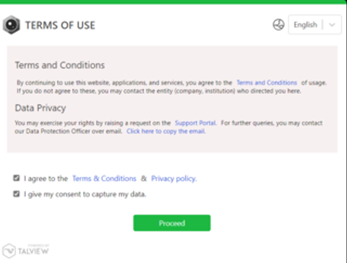
Step 1 - Terms of Use
First, candidates must agree to the Terms of Use and the Privacy Policy by ticking the checkbox.
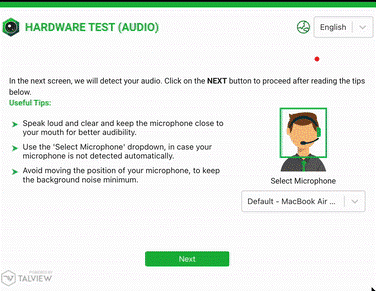
Step 2 - Hardware checks - microphone and camera
If prompted, allow camera and microphone access in the browser pop-up.
The check starts with an audio test, where candidates must make sure their microphone is working. They do this by clicking “Start Recording” and reading the sentence shown on the screen.
Candidates must also check that their webcam is working correctly, as it will be used to take their photograph and ID before the exam and record their session throughout.
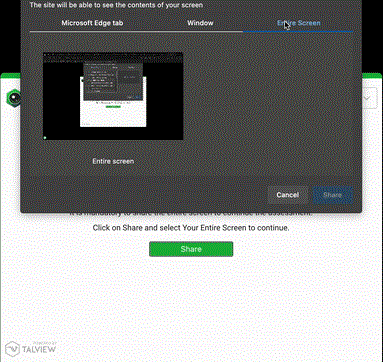
Step 3 - Screen sharing
A pop-up will ask for screen sharing. Candidates need to click Allow or Share, select Your Entire Screen and confirm. Then they should check that screen sharing is working correctly.
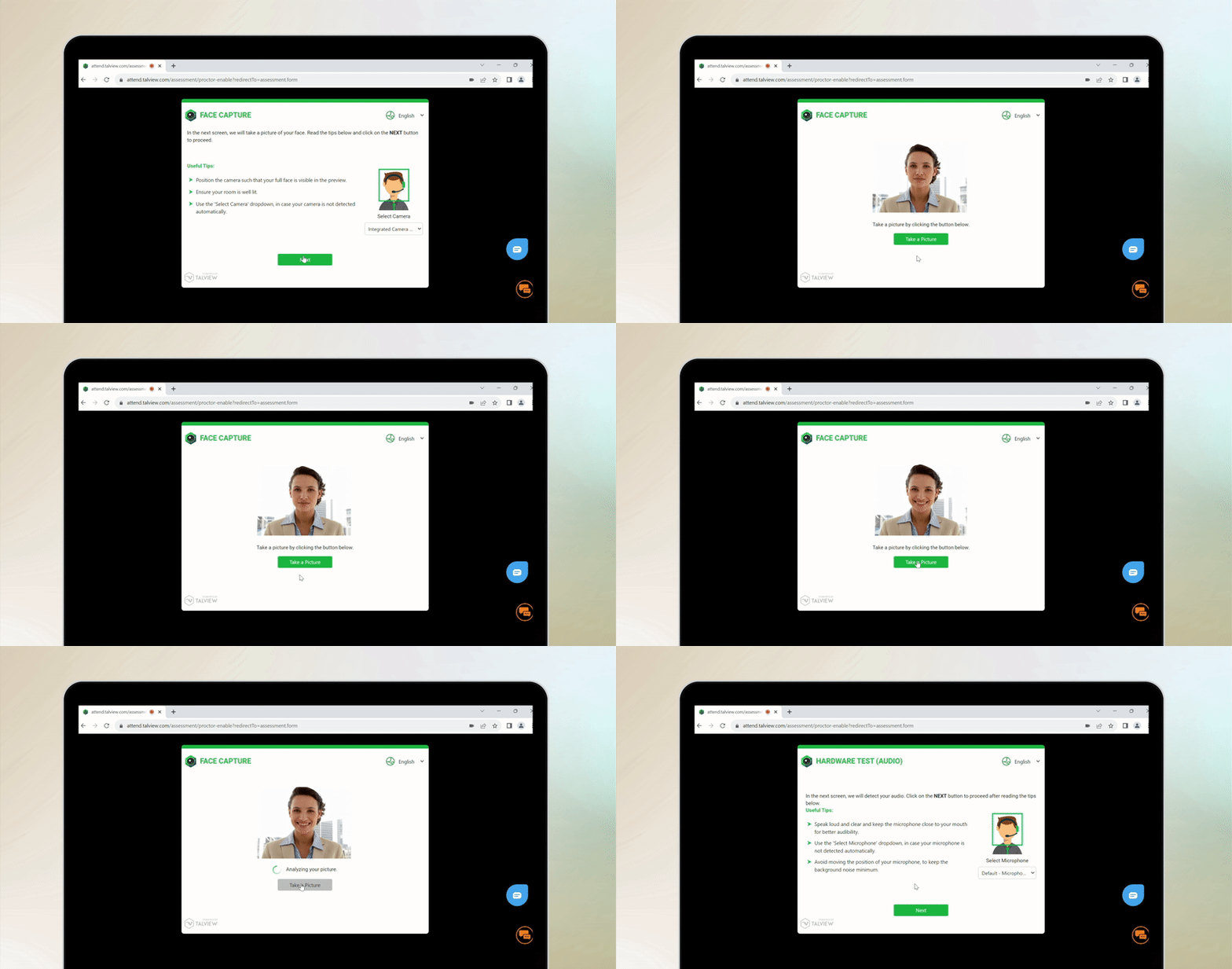
Step 4 - Candidate ID and image capture
Candidates will be asked to hold their photographic ID up to the webcam and follow the on-screen instructions to take a picture.
They will then be asked to take a photograph of themselves using the same webcam.
No secondary device or room scan is required. The webcam will remain on and record throughout the exam.
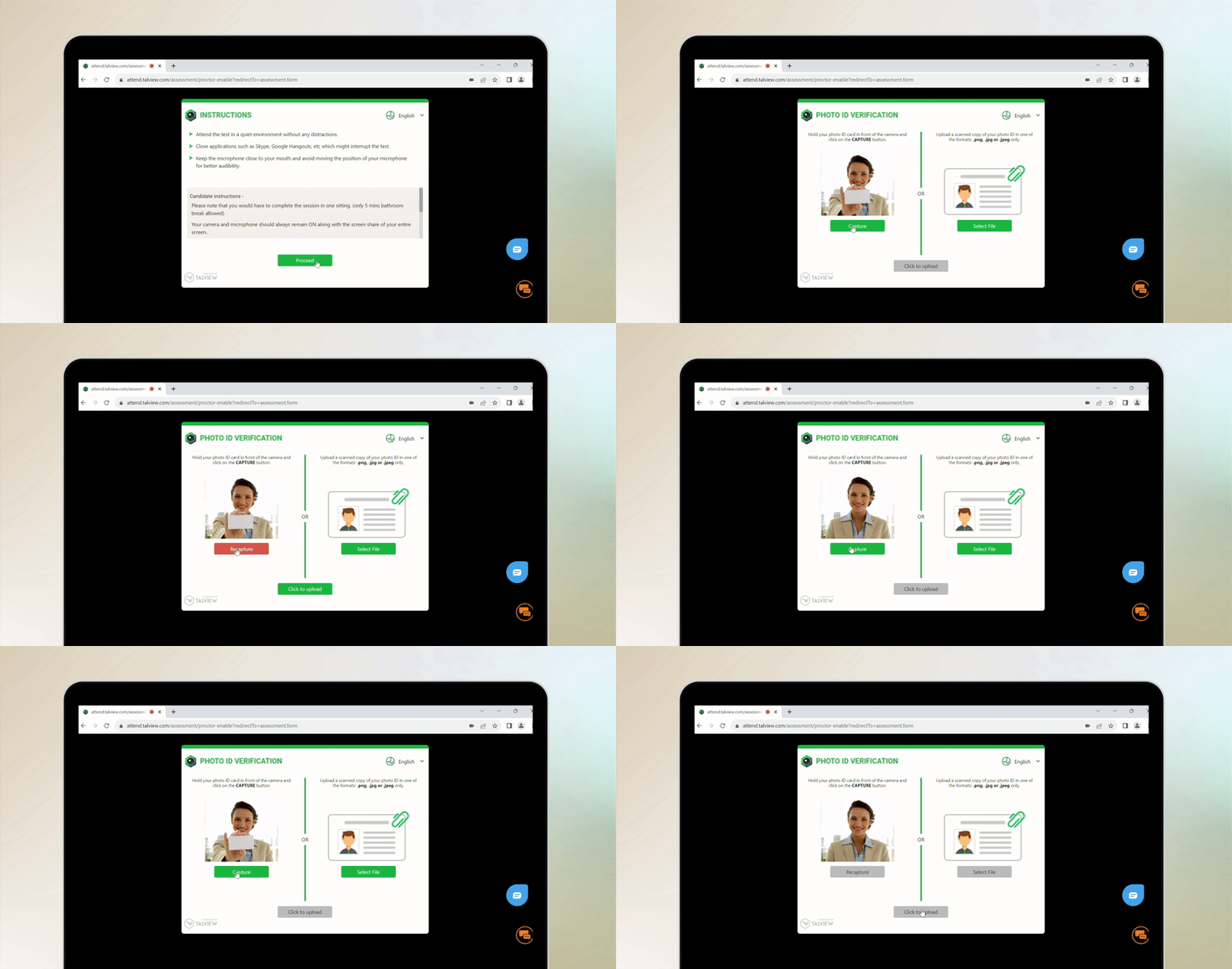
Step 5 - Behavioural guidance and Topic Notes
Before continuing, candidates will need to review the behavioural rules displayed on screen.
Candidates must also ensure their Topic Notes have been checked by centre staff and comply with Trinity's requirements.
Topic Notes must:
- Use the Trinity Topic Notes template, or
- Be clearly labelled “TOPIC NOTES”
- Contain bullet points only (no full sentences or paragraphs)
Centre staff must ensure that the required Topic Notes checks have been completed before candidates begin their exams.
4. During the exam
Candidates must remain at their allocated workstations and complete their exams independently.
The webcam on each candidate's computer will remain on and record throughout the exam.
Candidates must remain visible to their webcam, follow all exam rules and on-screen instructions, and must not communicate with other candidates or access any unauthorised materials.
Candidates must not interfere with the webcam or recording process.
Centre staff must remain available to assist with technical issues or health and safety concerns.
Any incidents or irregularities must be recorded in accordance with Trinity's standard procedures.
Once finished, candidates must follow the on-screen instructions to end their proctoring session. Candidates should leave the exam room without disturbing others who are still taking their exams.
5. After the exam
After candidates have finished their exams, centre staff must:
- Ensure all candidates have completed and ended their exam sessions correctly
- Ensure candidates' Topic Notes are collected and destroyed
- Complete the Supervisor's Report, including details of any incidents or irregularities
All standard post-exam procedures remain in force.
6. Compliance and audit
Recorded sessions will be reviewed after the exam.
If issues are identified, such as:
- Unauthorised materials
- Incorrect setup
- Candidate behaviour that breaches the rules
- Communication between candidates
- Interference with the webcam or recording process
This may result in:
- The exam being invalidated
- Further investigation
- Additional monitoring of the centre
Centres must ensure all staff involved in delivery are familiar with these guidelines before running in-centre remotely proctored group sessions.
See also:
- Proctoring Rules: Non-Permitted Behaviour and System Flags
- Topic Notes for In-Centre Remotely Proctored Exams
- Registered Exam Centre (REC) Requirements and Admin Pack
 Centres must ensure all staff involved in delivery are trained on these guidelines before running sessions.
See also:
Individual Candidates: Proctoring Rules: Non-Permitted Behaviour and System Flags
Topic Notes for in centre exams with remote proctoring
Was this article helpful?
That’s Great!
Thank you for your feedback
Sorry! We couldn't be helpful
Thank you for your feedback
Feedback sent
We appreciate your effort and will try to fix the article